
This guide explains the sections in langify’s left‑hand main menu.
The Dashboard

The Dashboard shows your machine translation word usage, translation progress, and recently edited items.
It also contains further sections to manage your languages, a Switcher Configurator to edit your language switcher, and the Theme Settings where you can publish langify on your store and add the polyfill code for server-side related Custom Content translations.
Machine Translation
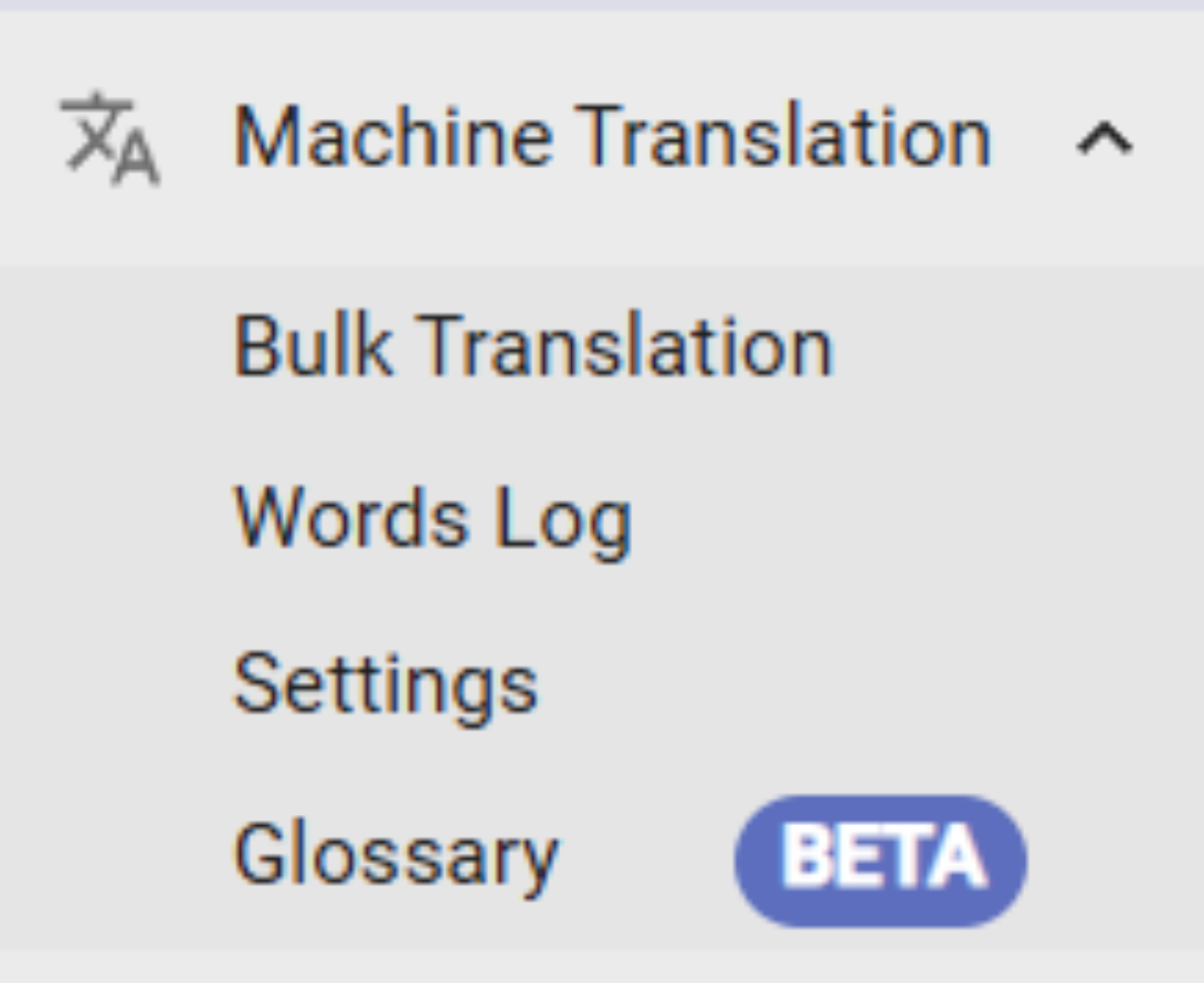
In this section you can find the Bulk Translation - a tool you can use to translate almost all store content in one go.
The second option, Words Log, will show how many words have been used and in which sections.
Settings contain options to fine-tune the machine translations. You will be able to choose formal or informal tone, and you can in- or exclude specific fields from the Bulk Translation tool.
Glossary allows you to exclude specific terms when bulk-translating. Learn more in our guide Machine-Translation Glossary.
Products
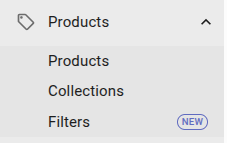
Here you can find all product-related contents - the Products themselves, the Collections, and the Filter
.
In the Products section you will be able to translate your products' main texts such as title, description, SEO and variants. And additionally their images, metafields, tags, types and vendors.
In the Collections section you can translate your collections, including their images and metafields.
In the Filter section, you can translate the labels of the collection filters, like "Color" or "Size".
Content
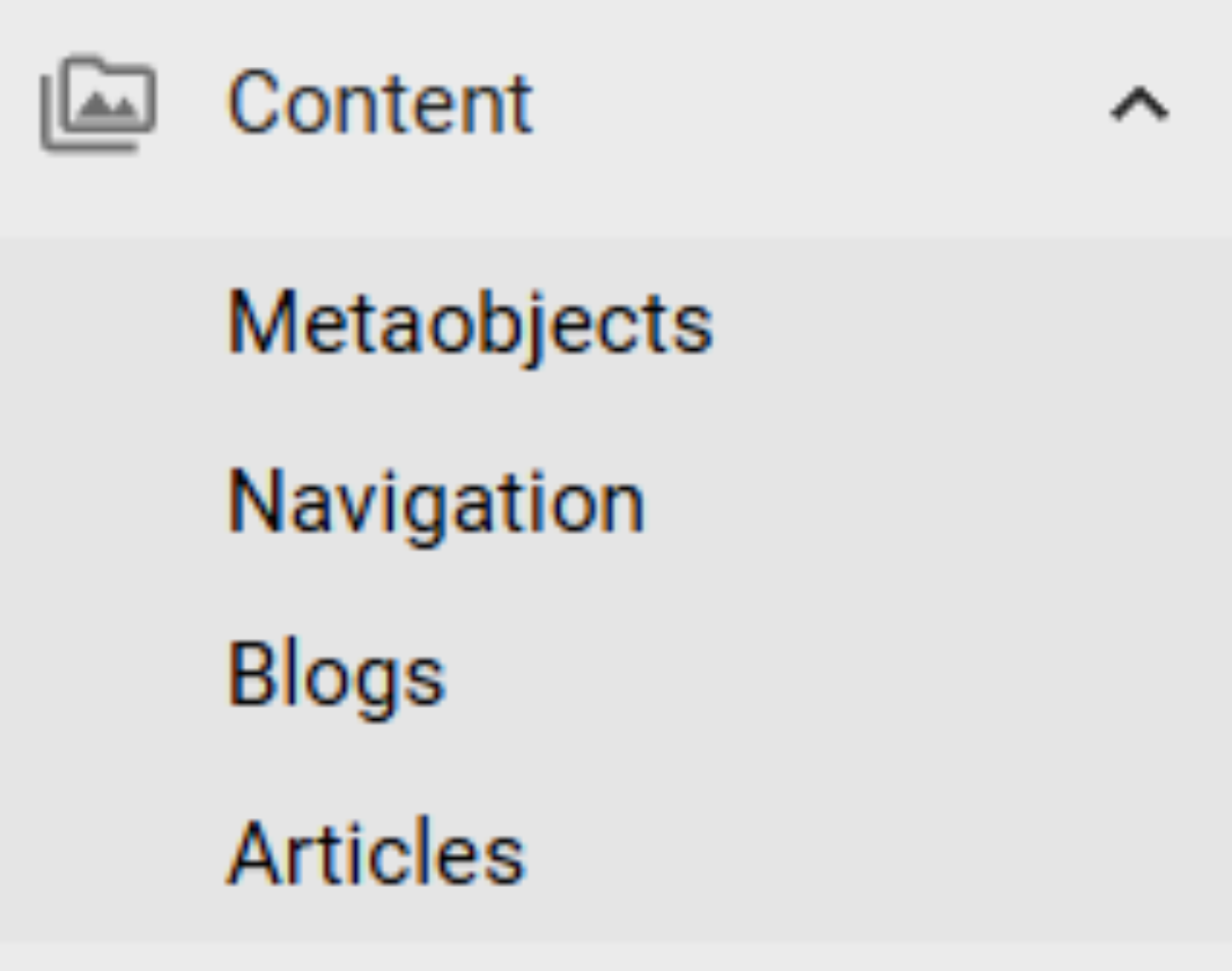
The Content section covers all content you have set up at Shopify -> Content:
In the Metaobjects option, you will be able to translate your metaobjects.
In the Navigation section you can translate the menus you have set up at Shopify -> Content -> Menus. This includes, for example, your header and footer menus.
In the Blogs section you can find and translate the blogs you have set up in Shopify at Content -> Blog posts -> Manage blogs.
The Articles section contains the articles you have set up in Shopify -> Content -> Blog posts. Plus, you will be able to translate their summaries, metafields and images.
Online Store

The Theme section covers different texts such as:
- Any text you have added via your Shopify Theme Customizer
- Checkout
- Theme default content (login page, cart, gift card)
The translations of the Theme section are theme-specific. When you change themes, they don’t carry over automatically - unless you have used the "Duplicate" option in Shopify to create your new theme. In case you need to migrate the translations, you can find all necessary steps in our guide What needs to be migrated when switching to a new theme?
The Pages option will allow you to translate the pages set up at Shopify -> Online Store -> Pages, and their metafields.
Apps

In the Embedded Apps section you can find all apps that have integrated their texts with the native Shopify translation system.
In the Integrated Apps section you can find those apps that have a custom integration with langify. Furthermore, it contains a list of recommended apps that work well with langify.
Note that most non‑integrated apps can be translated using the Custom section.
General
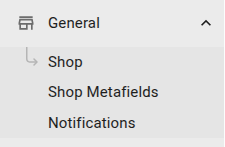
The General section has three important options:
The Shop section includes:
- The general SEO title and description of your store
- Your store policies that you have set up at Shopify -> Settings -> Policies
- The payment methods and shipping methods for your checkout
- Gookie banner translations
- Selling plan translations for product subscriptions
Currently, Shopify doesn’t support translating customized payment or shipping methods.
The Shop Metafield section contains the metafields that are directly attached to your store rather than to a specific product or collection.
The Notifications section allows you to translate the emails sent to your customers.
Note that Shopify only supports translating the notifications found at Shopify -> Settings -> Notifications.
Custom

The Custom section is where you can translate most third-party app contents or Shopify contents that are not supported out of the box. For more information on how to use Custom Content, please check our guide Custom Content translations.
Profile

In My Profile, you can find relevant options such as the billing cycle and your current subscription status.
In My Subscription, you can see your current plan, switch plans, and view and compare plan‑specific features
Finally, Priority Support is a feature that is only available for Premium Plan subscribers and will allow them to be prioritized when reaching out to our Support.
Settings
In the Settings you will find options related to the langify app interface. This includes:
- The rich-text-editor version
- The UI language
- Dark/light mode
- The prefix setting for images uploaded via langify
- The option to enable JavaScript translation for the global product type section
- A toggle for the Static section visibility - this is a deprecated section and disabled by default