
You can translate almost all your store's images with langify. Because these images are stored and rendered differently in your store, they have to be translated in different sections. Below you will find 4 translation approaches, depending on where the image was added within your Shopify admin. These options include:
- Translating images added via the Shopify Theme Customizer (e.g. images on the homepage)
- Translating images attached directly to a product/collection/article
- Translating images within a description text
- Translating images via Custom Content
If you're looking to translate the alt-text of your images, please have a look at our guide Image Alt Text Translations.
Images from the Theme Customizer
If you have added an image to your theme via the Shopify Theme Customizer, then it can be translated at langify -> Online Store -> Theme -> Section.
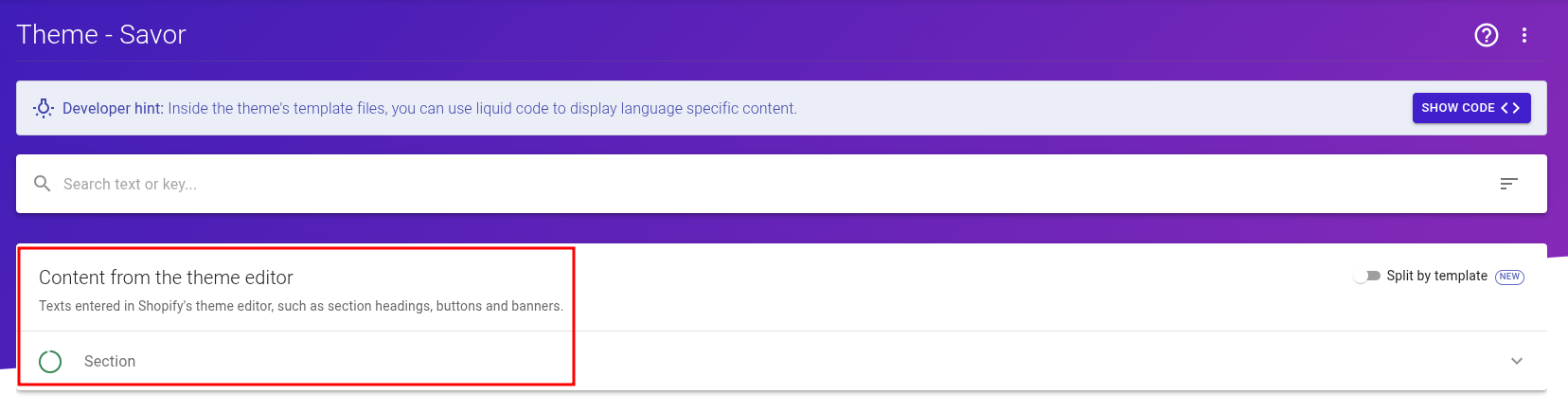
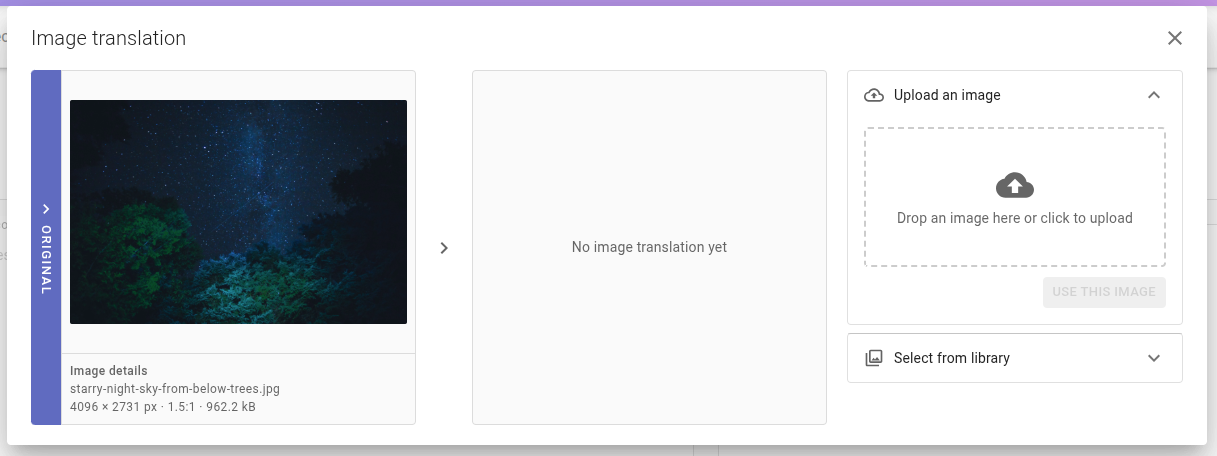
Find your image in the section and click on the translation field on the right. This will open an image translation diaogue where you can uplaod a new image or choose one from your image library:
Product/Collection/Article Images
If you have added the image to a product's, collection's or article's dedicated image section in your Shopify admin, then you can translate these inside the Images tab of the respective item in langify.
You can also translate the image's alt text in this section.
In the below example you'll find the steps to translate a product image.
Step 1 — Find the Product in langify
In langify, go to the Products section and open the product the image belongs to, then scroll a bit down to find the Images tab.
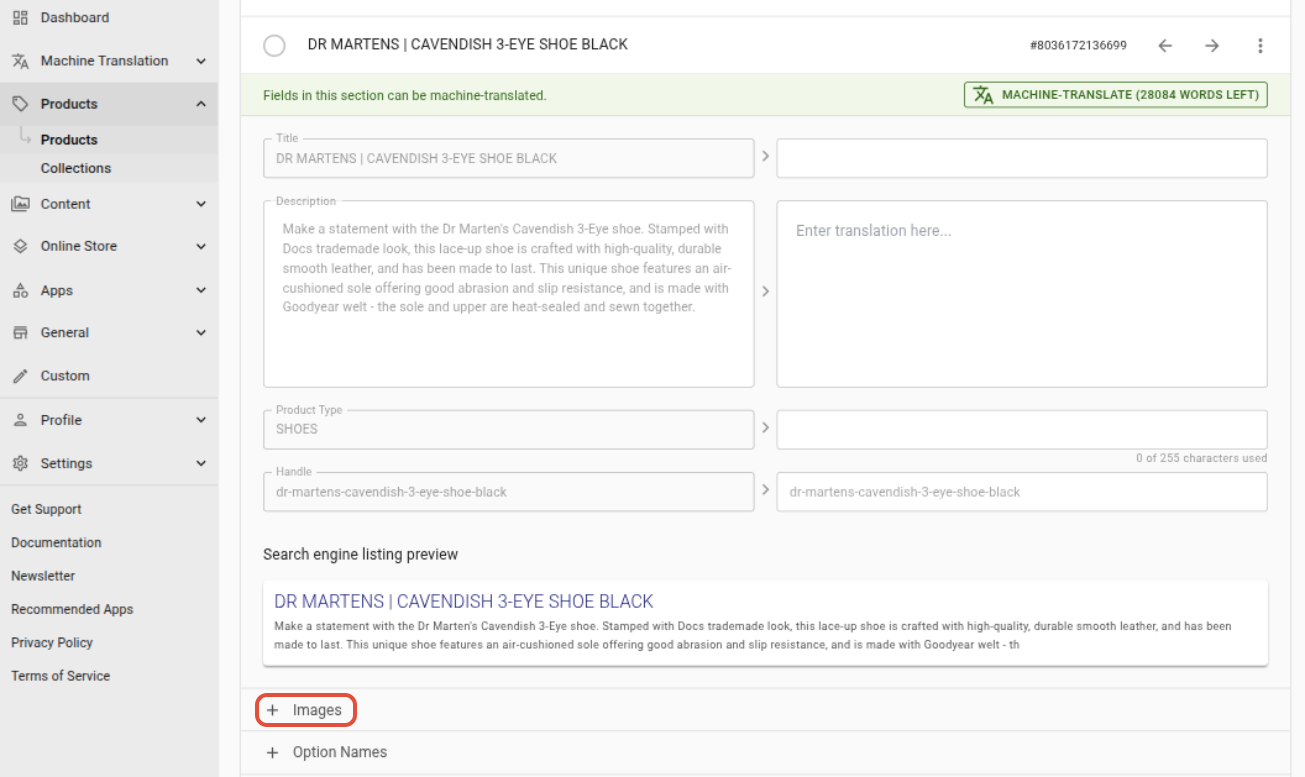
Step 2 — Choose the Image You Want to Translate
Once you've opened the Images tab, you will find all images attached to this product. To translate one of them, click into the translation field on the right:

Step 3 — Translate the Image
A popup will appear where you can upload your translated image, select from your library or simply enter an image URL:
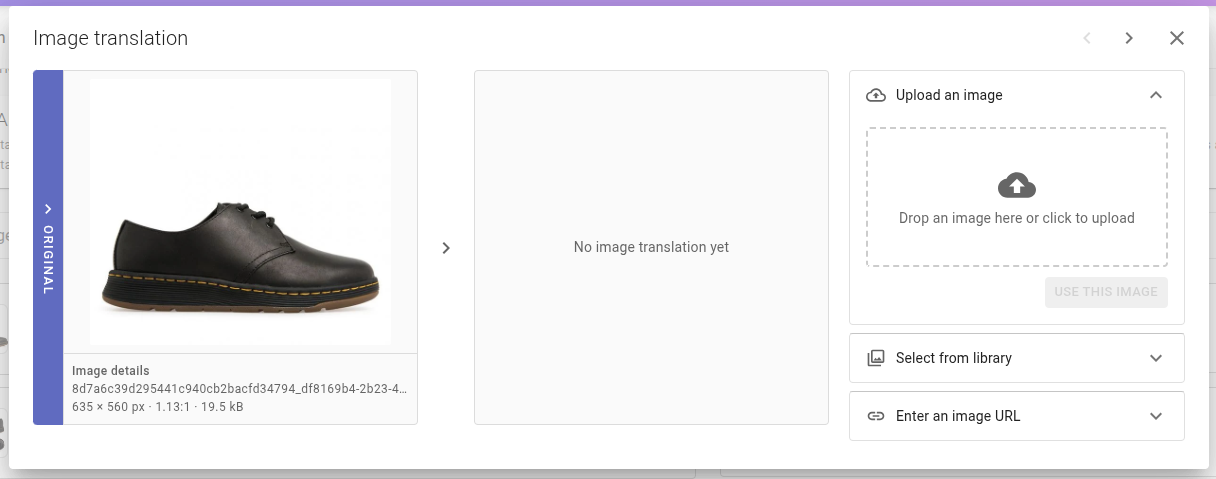
After choosing a translation image, click the blue Save button in the top-right corner.
Please be aware that the image translation is based on the image's URL. So, if you change the URL or title of the original image, the image translation will stop working and has to be done again.
Images within a Description Text
If you have added an image within a product's, collection's, article's or page's description text, you can translate them within the text itself.
To translate such images, please go to the description text of the respective item in langify. Click into the text at the place where you want the image to be inserted. Then, to insert your translated image, click on the plus icon on the left side of the toolbar, and select the Image option: 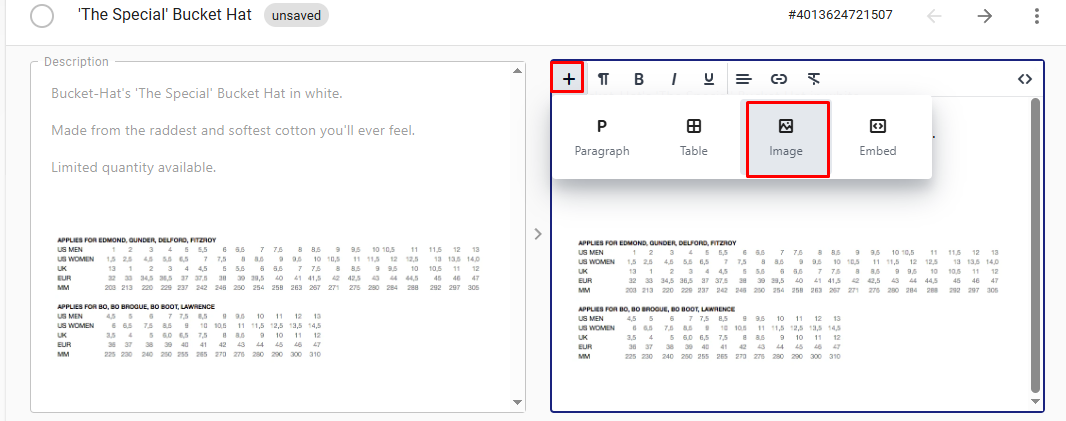
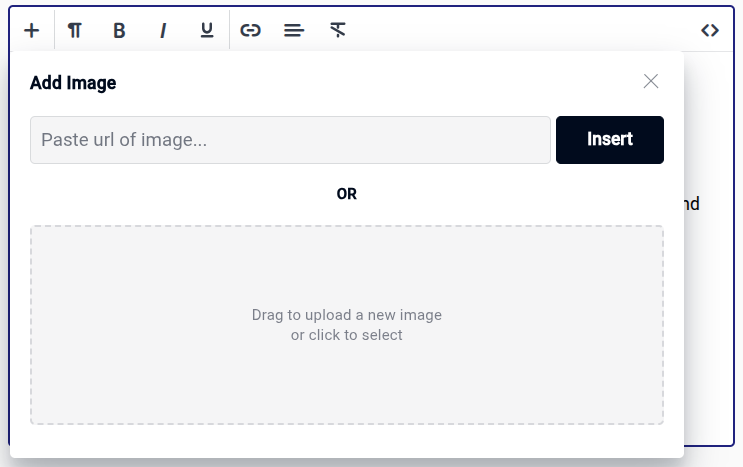
A popup will appear where you can paste the link of an already uploaded translated image.
Or you can click into the grey box to select an image, or drag and drop an image from an open folder on your device.
Any Other Image
If the above guides do not apply to your image, you can still translate any image via langify's Custom section. This is especially helpful for images added by third-party apps.
If you have never worked with Custom Content before, please first have a look at our general guide Custom Content translations. Make sure the langify app embed is enabled in your theme. Otherwise, Custom Content translations won’t be applied.
Watch our video or check the step-by-step guide below.
Step 1 — Find Out the URL of the Original Image
Open the page in your storefront where the image appears. Right-click on the image and choose one of:
- Open image in new tab (recommended), then copy the URL from the browser’s address bar, or
- Copy image address or Copy image link
Step 2 — Set Up a Custom Content in langify
Go to langify -> Custom and choose a subsection. If you're not sure where to add it, just use the "Global" subsection.
Create a new Custom Content and enter the original image's URL that you found out in step 1.
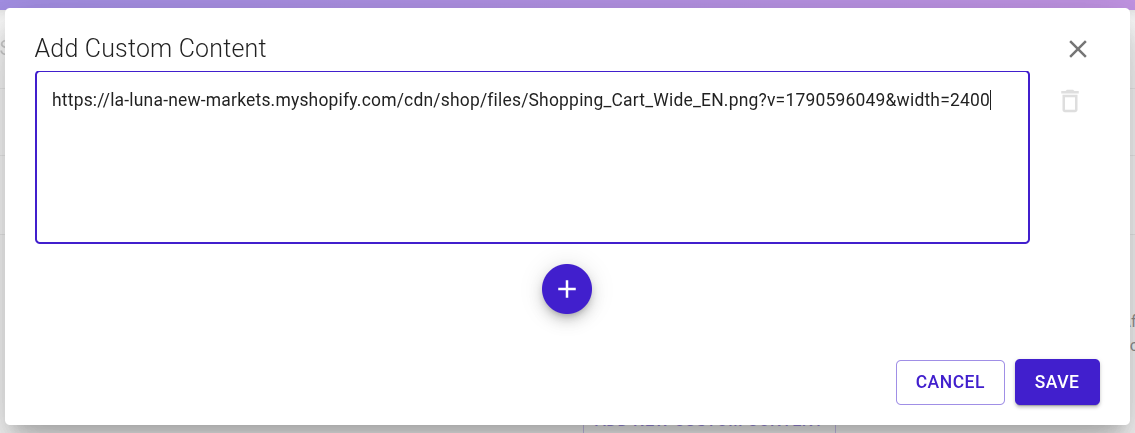
Click on the blue Save button in order to create the new Custom Content.
Step 3 — Translate the Image
Click on the translation field to add an image translation for your Custom Content.

You can upload an image from your device, choose one from your Shopify image library or enter an image URL as translation. In the example below, a translated image has been chosen:
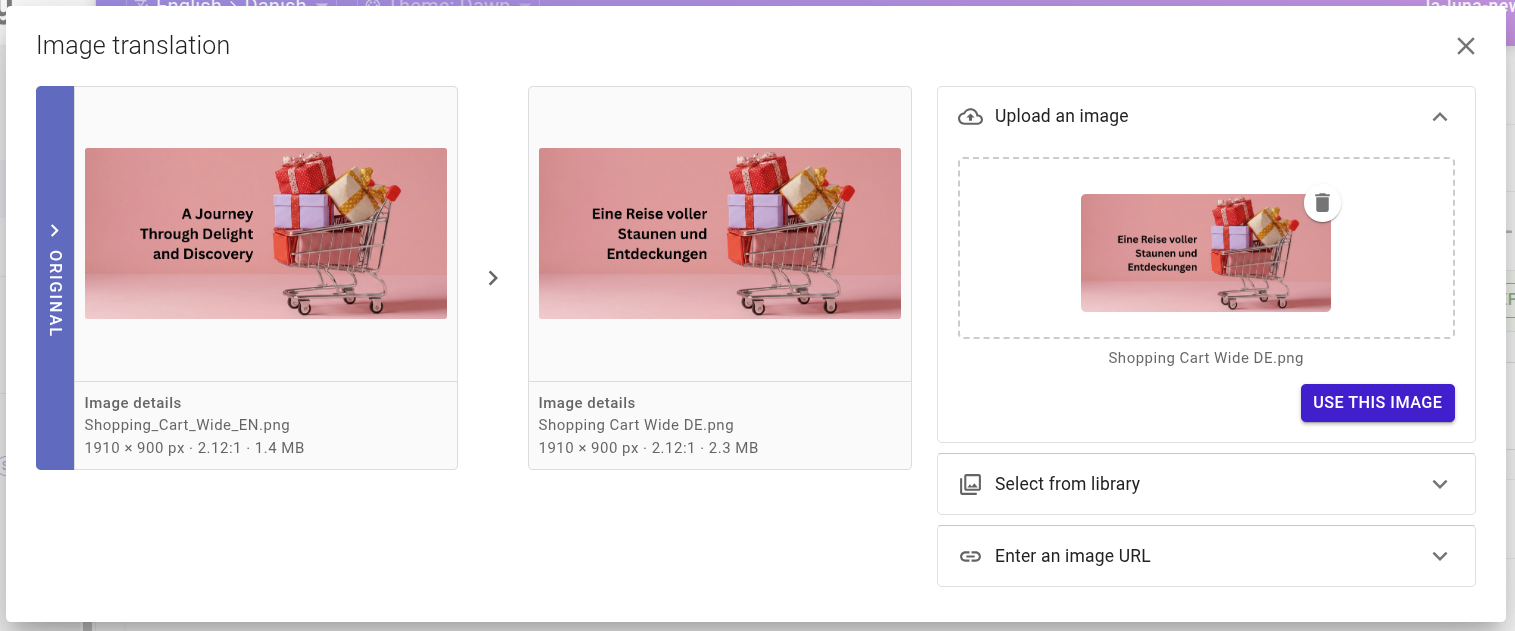
Click on the blue Use This Image button to upload the image to your Shopify library, then on Save to save the image translation.