
You can fine-tune your machine translations at langify > Machine Translations > Settings. Here you will find two options — DeepL Settings and Bulk Translation Settings.
If you're looking for a glossary to pre-define the translation for specific terms, please have a look at our guide Machine Translation Glossary.
DeepL Settings — Formality
In the Formality section you can easily switch between formal and informal tones when translating into certain languages. This setting determines which pronouns and related words appear in your translation.
More is the default setting, with the translations leaning towards a formal tone.
Prefer less can be enabled for a more informal tone.
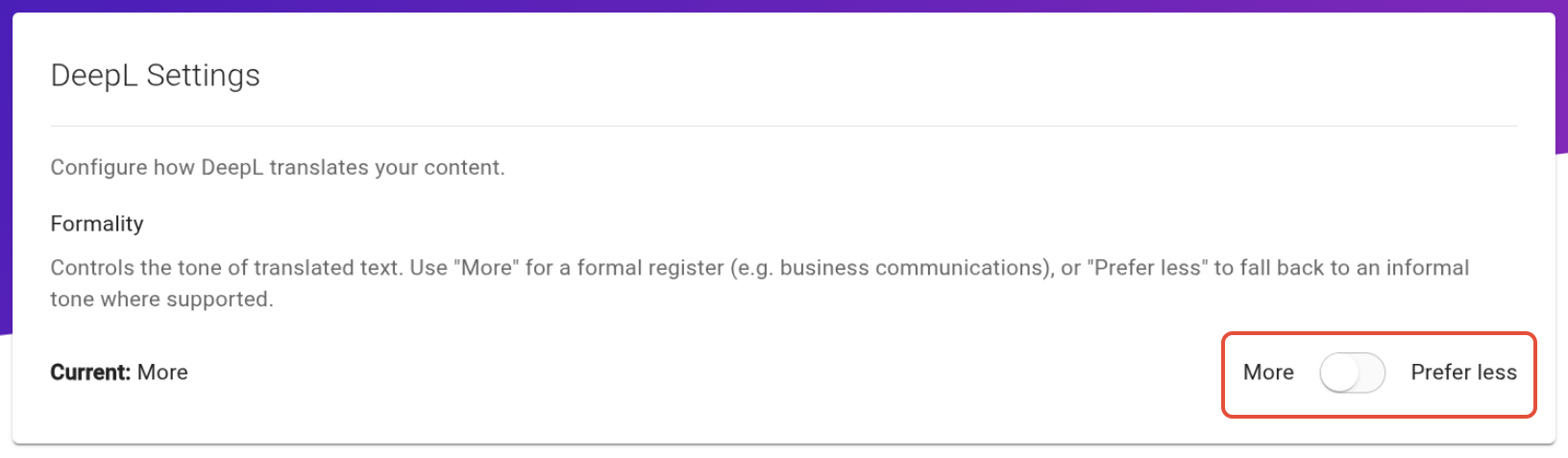
The setting is applied to both the green "machine-translate" button in the langify interface and the Bulk Translation tool.
Example
Take the phrase "Do you have any questions?" as an example — a common line in ecommerce, whether it appears in a product page, chatbot, or post-purchase email. When translated into German, the result changes depending on the tone your brand wants to strike.
In a formal setting — suited for luxury goods, B2B shops, or older target audiences — the pronoun "Sie" is used, giving you "Haben Sie Fragen?"
In an informal setting — common for lifestyle brands, youth fashion, or sports shops — the pronoun "du" takes over, resulting in "Hast du Fragen?"
DeepL
Note that not all languages make this distinction, and DeepL's formality setting is only available for certain languages. For an up-to-date list, check out DeepL's guide on the formality feature: https://support.deepl.com/hc/en-us/articles/4406432463762-About-the-formality-feature
Unlike DeepL, Google does not offer a dedicated formality setting, so this option has no effect when translating via Google.
Bulk Translation Settings
The Bulk Translation is a tool that can be used to quickly translate most of your store content in one go. It is available on the Growth plan and higher. For more information on this feature, please check our guide How to bulk-translate your store with langify.
In the Bulk Translation Settings you can configure which fields the count and translate actions should cover.
This is especially useful if you're looking to translate handles in bulk, which are excluded by default. Or if you prefer the translation to skip your product titles and leave them untranslated.
You can adjust the settings for each category (products, collections, pages, articles and blogs) separately.
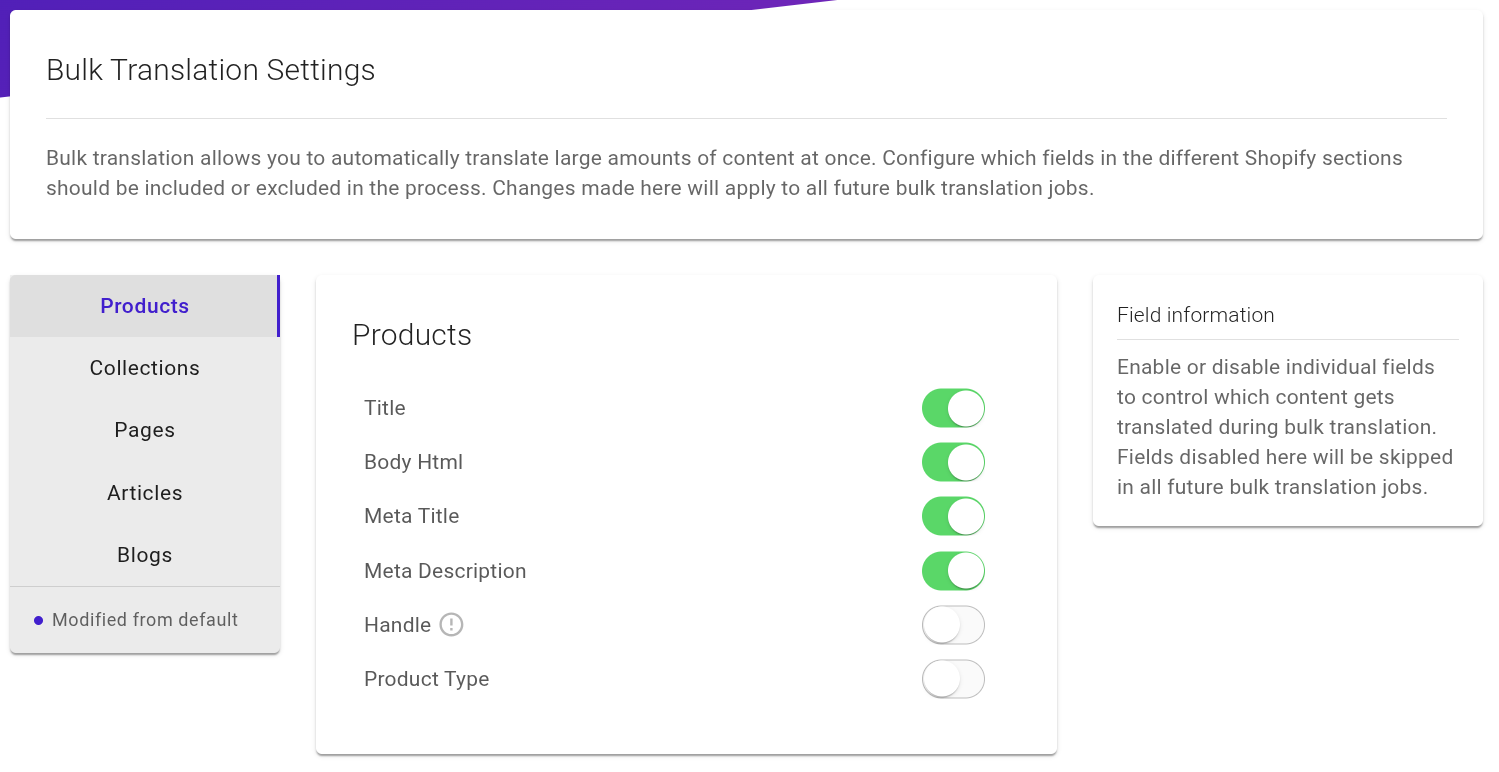
Title
default: enabled
When enabled, the Bulk Translation tool will count and translate the titles of the respective category.
Description
default: enabled
When enabled, the Bulk Translation tool will count and translate the description texts of the respective category.
Note that Blogs do not have a description text.
Summary
default: enabled
When enabled, the Bulk Translation tool will count and translate the summary texts. Note that only articles have summaries.
Meta Title
default: enabled
When enabled, the Bulk Translation will count and translate the meta titles of this category.
This setting is only relevant for those items where the original meta title has been customized in your Shopify admin.
If the item does not have a customized meta title, then the translation is automatically generated based on the normal title.
Meta Description
default: enabled
When enabled, the Bulk Translation will count and translate the meta description texts of this category.
This setting is only relevant for those items where the original meta description has been customized in your Shopify admin.
If the item does not have a customized meta description, then the translation is automatically generated based on the normal description.
Handle
default: disabled
When enabled, the Bulk Translation will count and translate the handles of this category.
Unlike other translation fields, Shopify is rather strict about handle translations. A machine translation might not fit the requirements to successfully save the translation. We recommend double-checking handle translations manually.
For more information about handle translation, please have a look at our guide Handle Translations.
Product Type
default: disabled
When enabled, the Bulk Translation will count and translate the product-specific product types.
This translation covers the product types found on the products directly, and does not refer to the global types found at the top of the product section.