
If you have published langify to your theme prior to the 1st of February 2024, then you can migrate to the new publishing method with a few clicks. Unfortunately, langify cannot do this process automatically because Shopify has restricted third-party apps from making any changes to the theme code.
Alternatively, you can keep the published state as it is and leave langify disabled in the Embedded App section of your theme — your translations will continue to function normally.
To update your publishing method to the new standard, you can visit the Theme Settings tab on the langify dashboard. There you'll find the option to Start to Remove the Code:
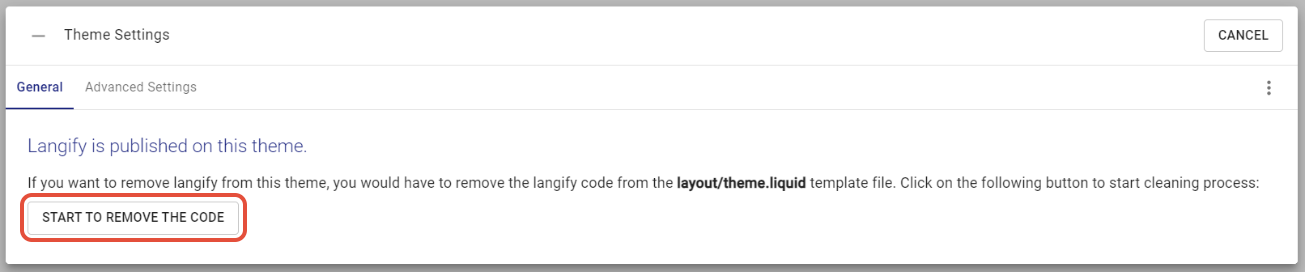
- Click on this option and then on Generate Code — langify will proceed to generate the code of your theme's main file as it were without the old langify translation code.
- Copy the code to your clipboard as prompted and click on Open Template.
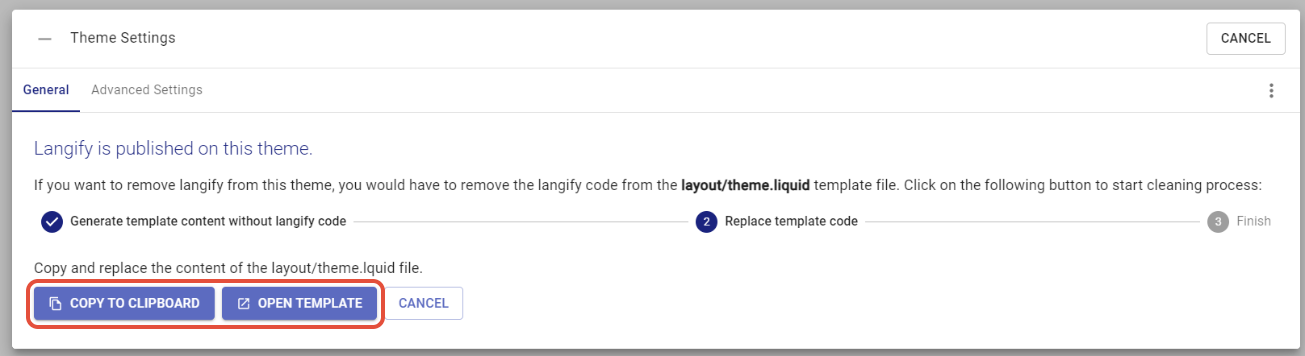
- Replace the existing code in the theme.liquid file by selecting all (Ctrl+A) and pasting the new code (Ctrl+V). This will insert the original code of the file with just a few additional lines of code for langify.
Optionally, also remove the 4 langify files from your theme. Their names are:
ly-core-scripts.liquidly-liquid-scripts.liquidly-get-customs.liquidly-switcher-factory.liquid
Should you require assistance with this process, please do not hesitate to contact us at support@langify-app.com
Afterwards, enable langify in the Embedded App section of your theme as mentioned in our guide Publishing langify.
Add your theme ID in the settings of the langify Embedded App section! This is important in order for the language switcher settings to be applied to your theme.
Note that cleaning up langify's old translation code from your theme only affects the language switcher and translations of the sections Custom and Static.
Once langify is active as embedded app on your theme, the language switcher and Custom Content translations should be back in place.
For the Static section translations, please follow our guide Manually Managing langify's Translation Code. When you edit and save any new translations in the Static section, remember to manually update the translation code for that snippet specifically, as outlined in our guide Manually Managing the Static Section Code.
Important Changes
Please be aware that the new publishing process introduces significant changes to three of langify's functionalities.
- The settings within the langify dashboard related to the language switcher and Theme settings are now globally applied to all themes unless a specific theme ID is provided in the Embedded App section of the theme.
- The Custom section now utilizes only client-side JavaScript to translate the content on your pages. This may result in a slight delay before translations are visible. To minimize this latency and utilize langify's original server-side translation method, please consult our guide on how to manually integrate langify into your theme.
- The Static section relies entirely on translation code inside the theme and will no longer work out of the box with the new publishing method. You can however quickly get all your Static section translations back by adding the translation code mentioned in our guide Manually Managing langify's Translation Code. If you edit your snippet or edit the Pagefly/Gempage, please follow our guide to publish the updated Static translation code manually to the theme in order to apply the translation. If you prefer not to manage any manual translation code, please use the Custom section instead. This has the added benefit that you do not need to migrate the Static section translations upon a theme change.
For further troubleshooting, please see our guide New langify publishing method - Troubleshooting.