
With langify you can add and edit your translations manually at any time. This can be used to optimize existing translations, and enables you to work without machine translations. You can translate your store on your own, or hire a professional human translation service.
Useful for the work with translations are the Export and Import options. You can export your content to work on the translations outside of langify.
Below you will find further information on best practices:
Copy-Pasting
If you have saved your translations on a Word or PDF document and want to copy them into langify, please make sure that you paste the text as plain text. Otherwise, custom formatting might be copied over that can negatively affect the page layout or font styling.
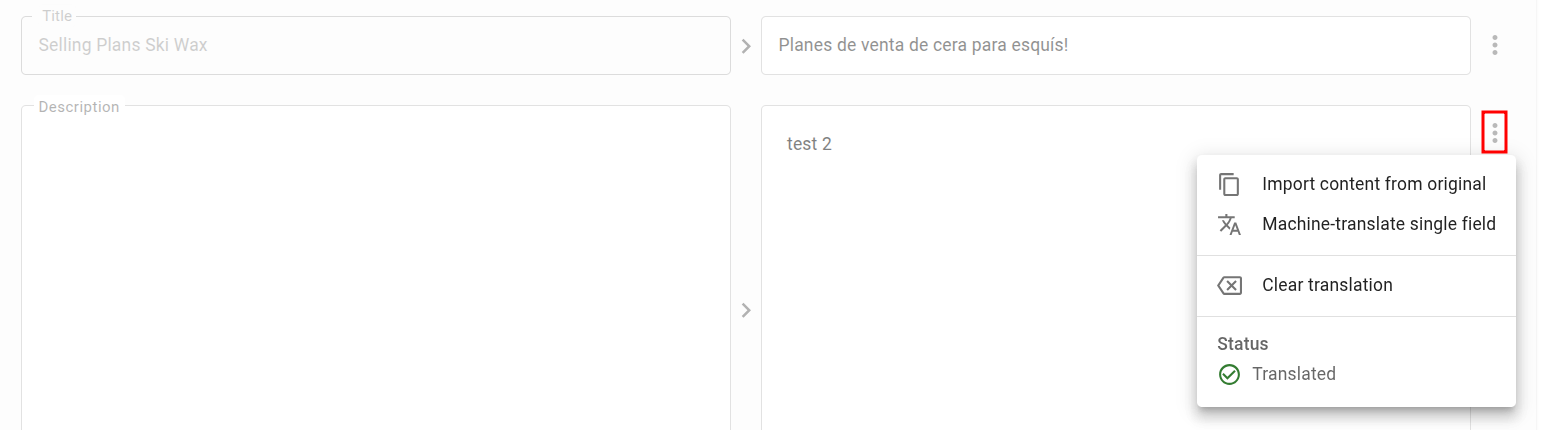
Import Content from Original
If you're working on a new translation in langify, it can be useful to use the "Import content from original" option before you begin. This will simply copy all content from the original field into the translation field. This serves as an ideal starting point for translations, as it ensures that the HTML structure of both fields is the same.
You can find this option if you click on the three-dot icon to the right of any field:
View HTML
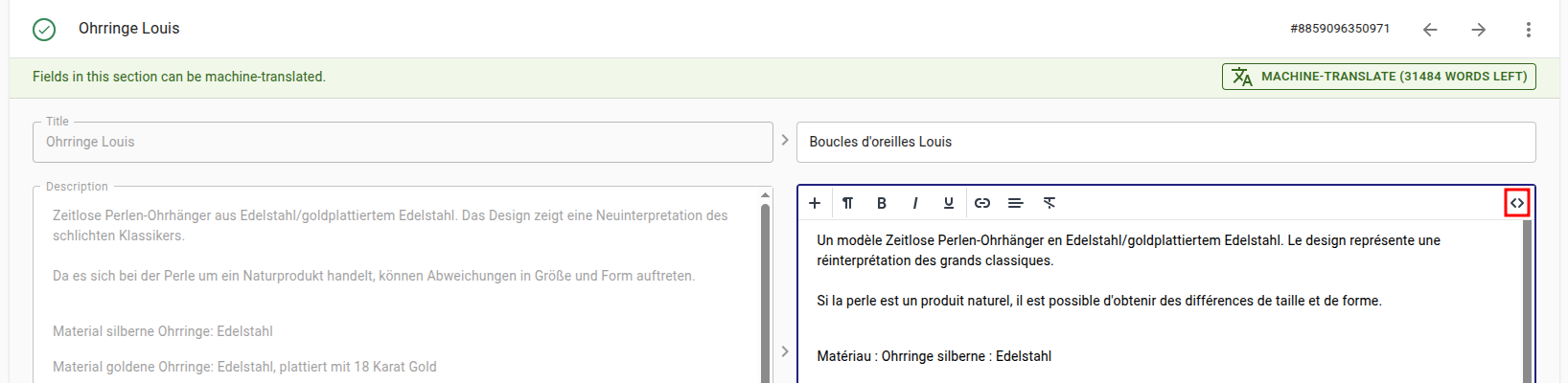
If you would like to verify the HTML of your translations, or edit it in more detail, you can click inside the field on the right side where your translations are. Now a toolbar will appear at the top, and you can click the <> icon on the far right:
You can now view the HTML structure in both fields:
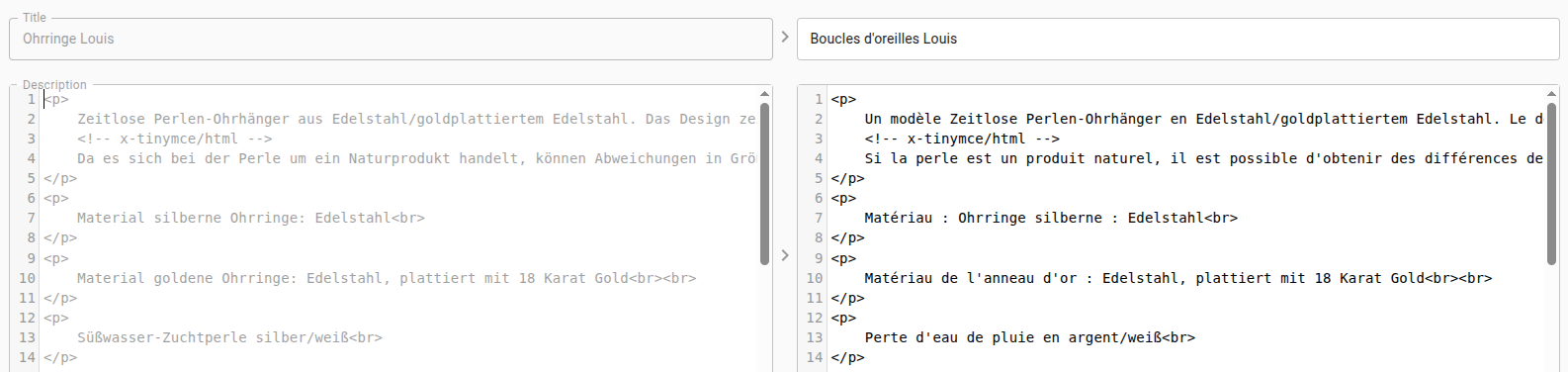
Note that in langify you can only edit the content of the translation field on the right side.
If you're looking to edit the original content, please go to your Shopify admin area.