
Breakpoints are screen widths at which your store changes its layout to look good on different devices — phones, tablets, and desktops.
In langify, breakpoints let you show a different language switcher design depending on the device your visitor is using. For example, on desktop your store may have enough space to show a switcher with a flag and language name — but on mobile, space is limited, so an icon-only switcher fits the layout better.
How Breakpoints Work
Langify defaults to a single breakpoint at 1000px. This means:
- Visitors on screens narrower than 1000px will see the switcher style you have configured for mobile
- Visitors on screens 1000px and wider will see the switcher style configured for tablet and desktop
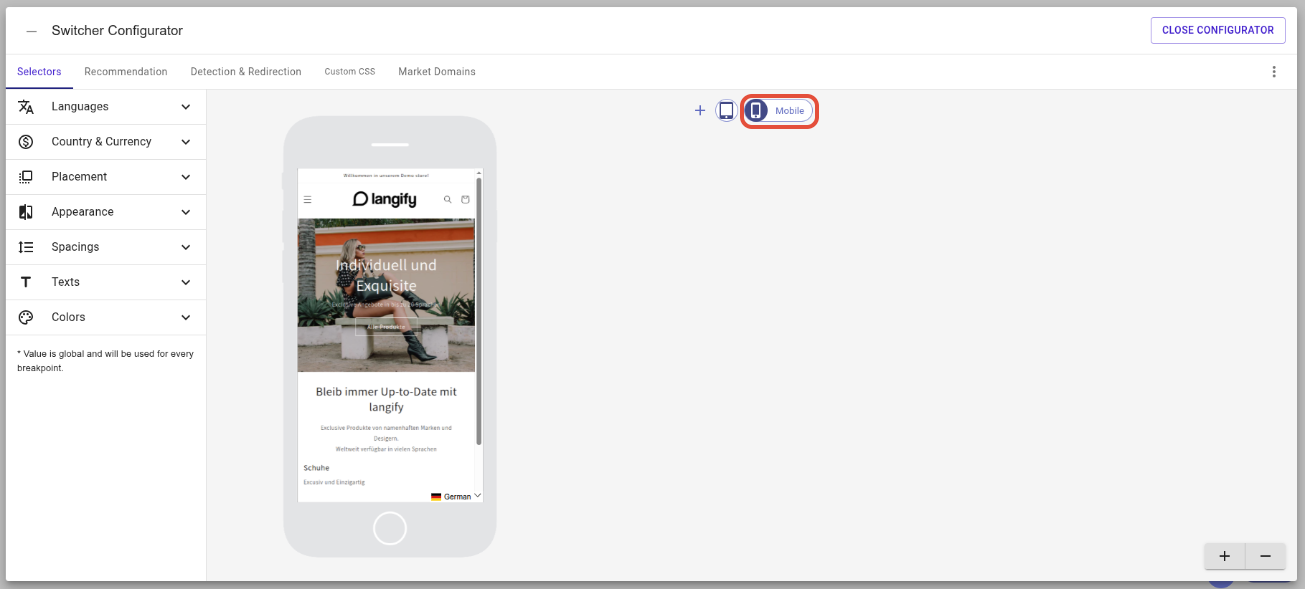
If you want to edit how the language switcher appears on mobile, click on the mobile icon. Now all changes to the switcher will be applied to the mobile version specifically:
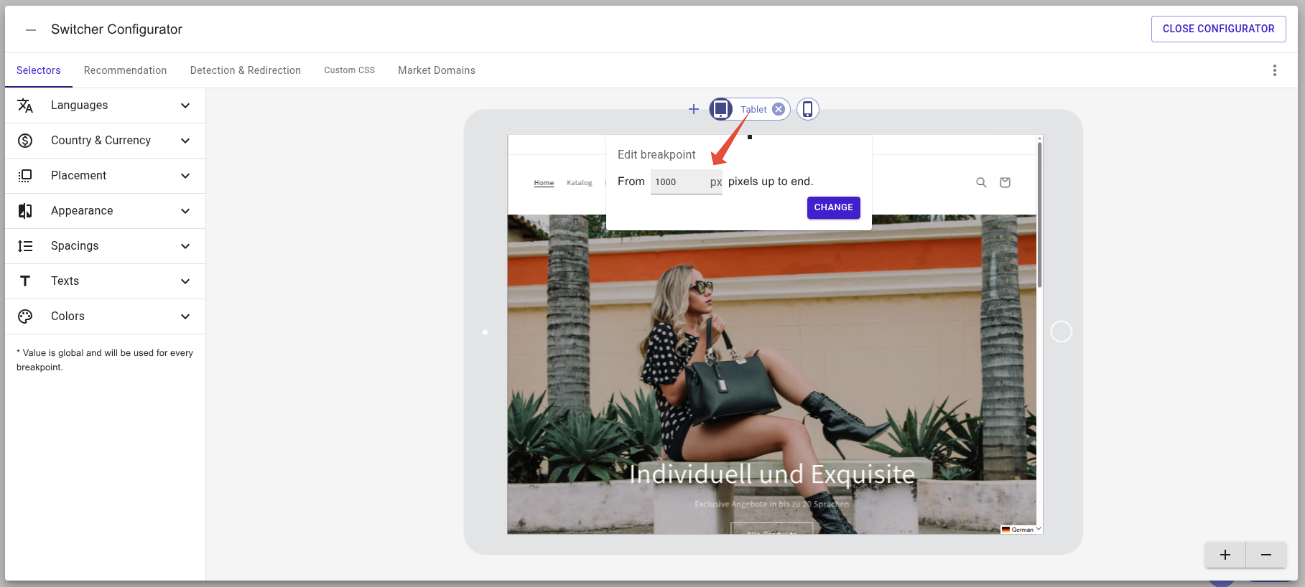
If your switcher appears in the wrong position or doesn't fit the layout on certain devices, you can adjust the breakpoint value to better match your theme's layout. Hover over the breakpoint to edit it:
How to Add a Breakpoint
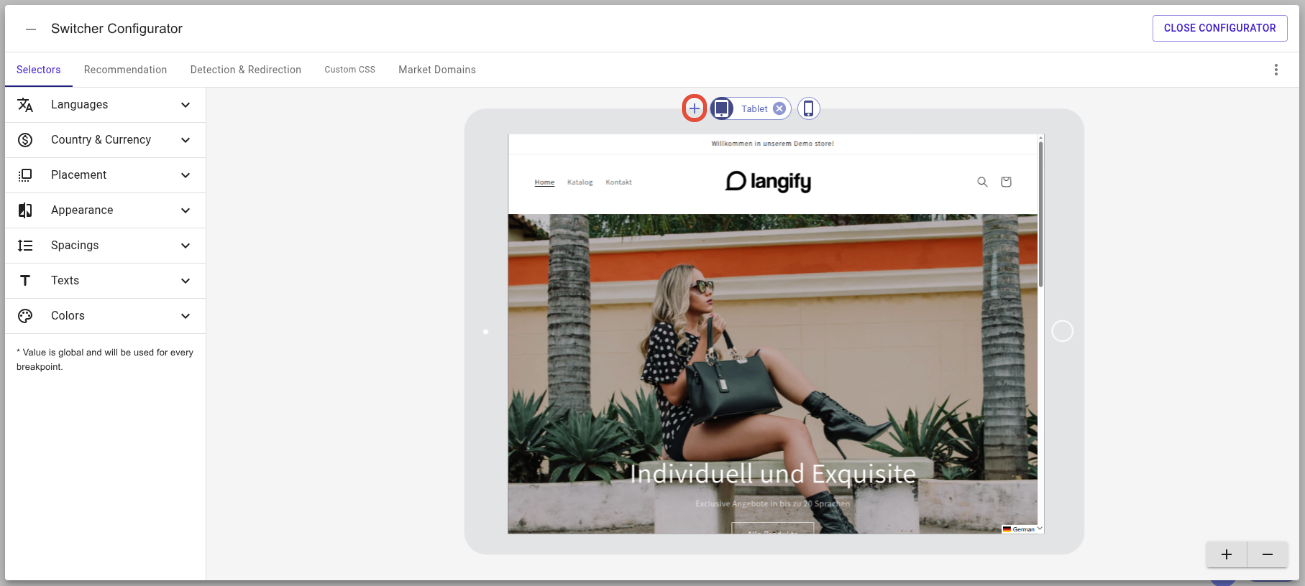
You can add multiple breakpoints if you want to define a separate switcher style for tablets as well. To add a breakpoint, click on the plus icon to the left of the existing breakpoints:
In the next step you can add the pixel value for the new breakpoint:
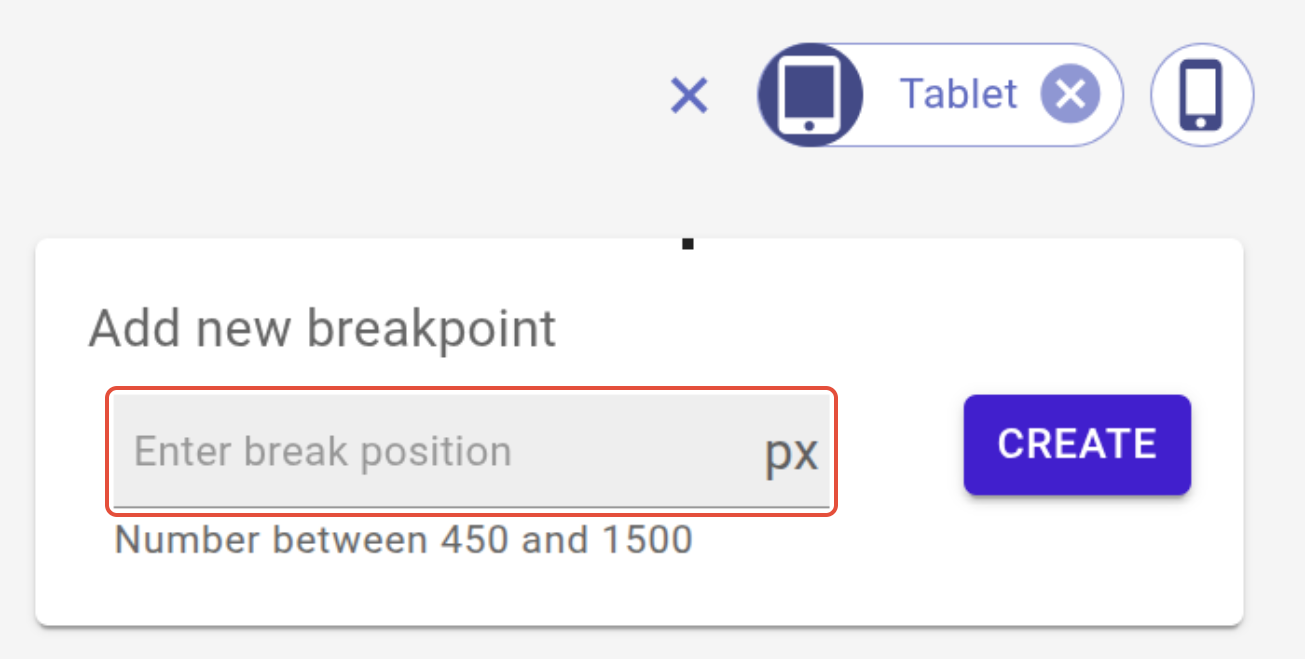
Then click on the blue Create button. Save your changes by clicking the Save button in the upper-right corner