
Below you will find 3 translation approaches, depending on where the video was added within your Shopify admin. These options include:
- Translating videos added via the Shopify Theme Customizer (e.g. videos on the homepage)
- Translating videos within a description text
- Translating videos via Custom Content (e.g. videos added via a third-party app, or as media on a product)
Videos from the Theme Customizer
External URL
If you have added the video via your theme in the Shopify Theme Customizer as an external link (YouTube/Vimeo), then you can translate the video in langify at Online Store > Theme > Section. If you know the name or the ID of the video, you can enter this in the search bar at the top of the Theme section to quickly find the video.
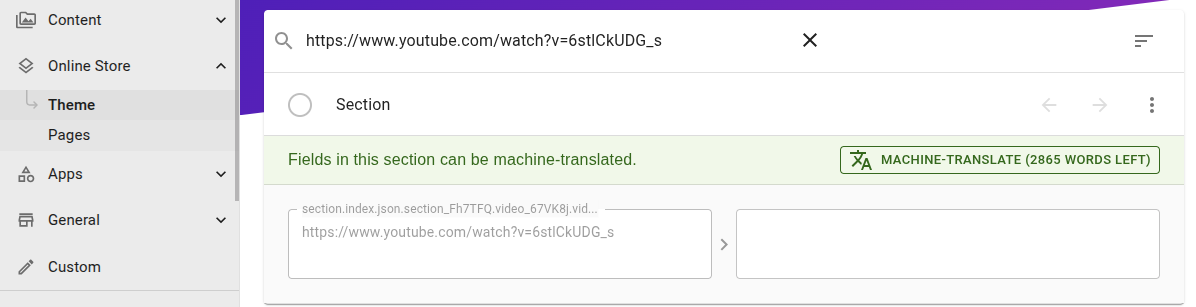
To translate the video of an external URL, simply choose a different video from YouTube or Vimeo and enter its URL as translation.
If a search for the full video URL does not turn up any result, it might help to search only for the video ID. The ID is the part behind the "v=" inside the URL. So for the example URL https://www.youtube.com/watch?v=6stlCkUDG_s the ID would be just 6stlCkUDG_s
Uploaded Video
If you have uploaded the original video to your Shopify File section, then the translated video also needs to be first uploaded at Shopify > Content > Files. Afterwards, you can copy the video's URL from there and enter it as the translation in langify at Online Store > Theme > Section.
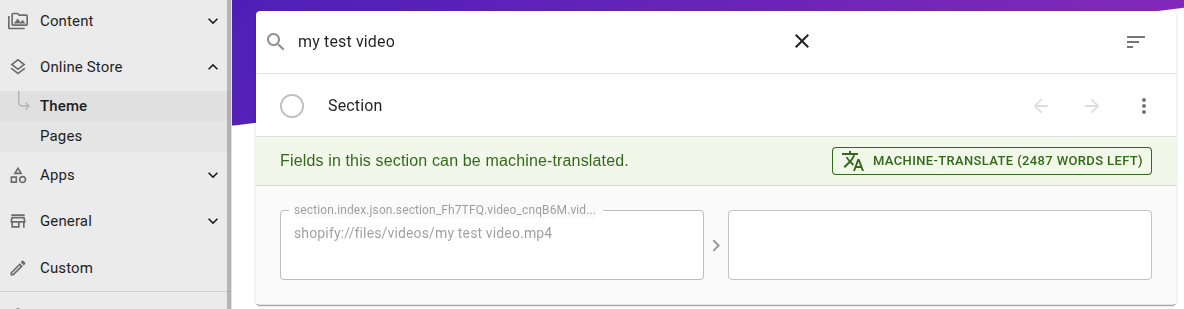
When adding the translation, make sure that the URL structure of the translation matches the original.
If your original video starts with shopify://files/videos/ — like in the example above — then the translation must also start with this, followed by the video's name and its file extension.
Videos within a Description Text
If you have added the video directly as an iframe embed snippet within a description text of a product, collection or similar, then you can add a different video of your choice within the translated description.
In order to do this, first open the item in langify. For example, if you have added the video within a product description, open the product at langify > Products.
Changing an Existing Video
- Click on the video within the translated description, so the editor's toolbar at the top shows your the embed icon:
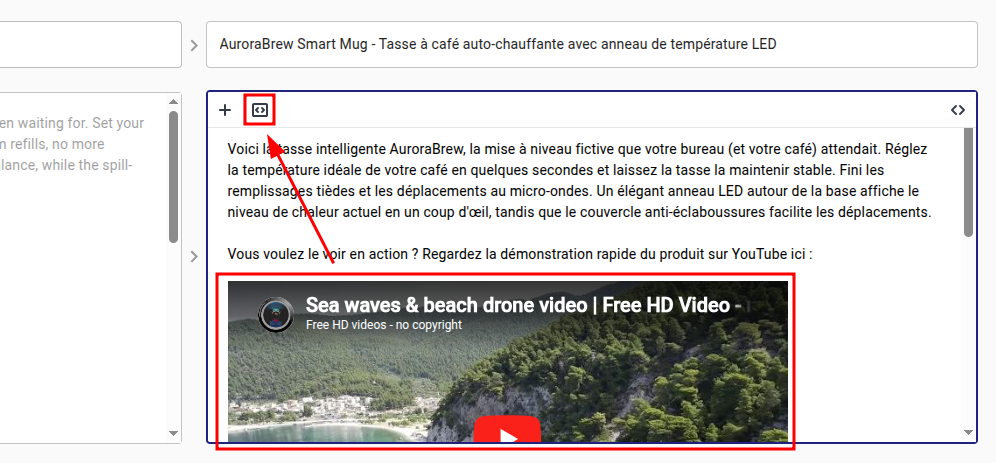
- Clicking it will give you the option to enter a different iframe embed snippet:
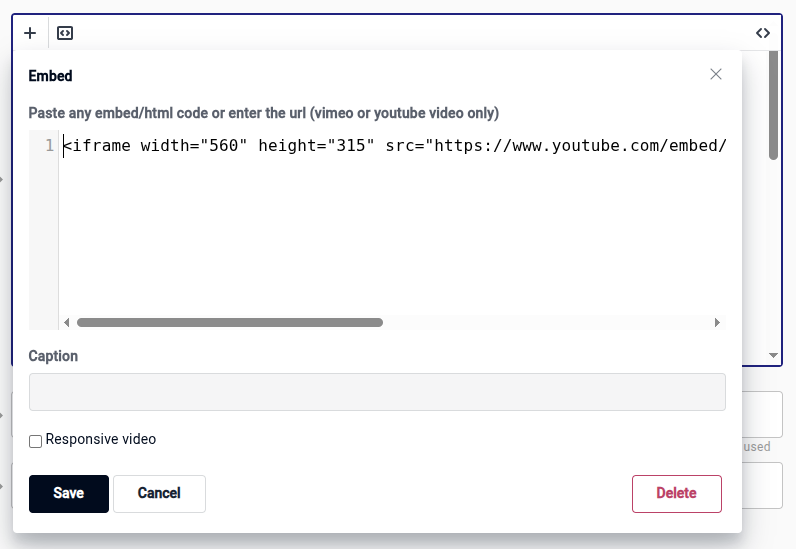
- Fetch the embed snippet from YouTube or Vimeo for the video you want to display in the translated description, and enter it here.
To get a video's embed snippet in YouTube, open the video page and click on Share, then choose the first option Embed. Here you can copy the embed snippet for your video.
To get a video's embed snippet in Vimeo, open the video page and click on Share, then choose the option Copy embed code.
Adding a New Video
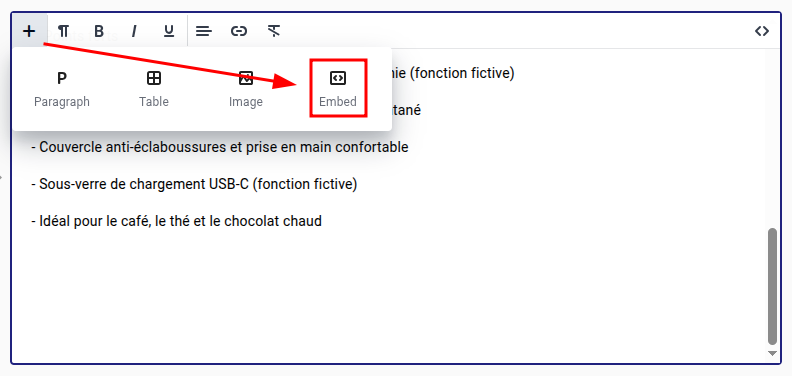
If you want to add a completely new video to the translated description, just click into the text where you want the video to appear and then on the plus icon on the left of the toolbar. Clicking on the Embed option will open a popup where you can enter an iframe embed snippet for your video.
Any other Video
In case none of the above applies for your video, it might still be possible to translate the video via langify's Custom section. This can be useful for videos added by third-party apps, or for videos added within the Media section of a product.
When using Custom Content to translate a video, please note the following:
- If you haven't used Custom Content before, please first have a look at our guide Third-Party App/Custom Content Translations.
- Make sure that langify is published as embedded app to your theme.
- It might be necessary to additionally add the langify Polyfill code to your theme.
Generally, a video can be translated via the Custom section by first setting up a new Custom Content with the video's URL how it appears in your storefront. Depending on how exactly the video is implemented in your theme, this can vary.
Option A — Use the Plain Video URL
Simply use the URL of the video as you entered it for the original video to create a new Custom Content.
This could be for example a YouTube URL like:
https://www.youtube.com/watch?v=6stlCkUDG_s
Or a Vimeo URL like:
https://vimeo.com/1086925006
or https://player.vimeo.com/video/1086925006
Or a file URL from the Shopify Files section like:
https://cdn.shopify.com/videos/c/o/v/6dc34dc3bd184f6399d52e0ee82dbc83.mp4
Option B — Use Only the Video ID
It is possible, that a YouTube video is only referenced by its ID in the storefront. In this case, shorten your example URL https://www.youtube.com/watch?v=6stlCkUDG_s to just its ID 6stlCkUDG_s and use this to create a new Custom Content.
Option C — Use the Storefront Video URL
If neither works, then it's necessary to check what the actual video URL is within the source code of the storefront page. This can be a bit tricky and requires some basic knowledge of HTML. If you require any assistance with this, don't hesitate to reach out to us at support@langify-app.com.
- Find the original video URL Open the page where the video appears and right-click on it. Choose Inspect. In the HTML, look for a URL in a src attribute that points to a video file (e.g. ends with
.mp4,.movor.webm).- The video URL might look different from the URL shown in your Shopify admin.
- You may also see thumbnail image URLs — make sure you copy the actual video URL.
 Copy the video URL to use in the next step.
 - Create Custom Content in langify Go to langify -> Custom and add a new Custom Content item. Enter the original video URL and click the blue Save button.
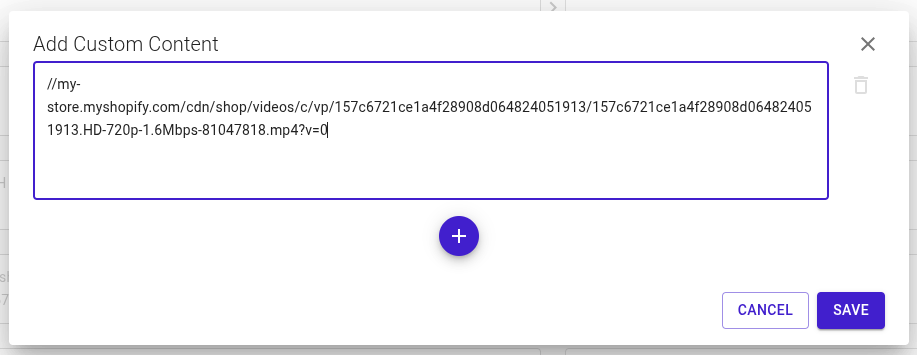
- Upload the translated video Go to Shopify > Content > Files and upload the translated video. Then copy its URL by clicking the chain‑link icon on the far right.

- Add the translation Return to the Custom Content item in langify and paste the translated video URL as the translation. Save your changes.

Afterwards, make sure to double-check if the video was successfully translated in your storefront.