
When setting up translations for a right-to-left language, you may encounter issues with the text layout in your storefront.
Below are tips and best practices for handling RTL layouts.
Choose a Theme that Supports RTL
RTL support is considered a theme‑level design & implementation choice, not an explicit Shopify platform requirement. A theme from the Shopify Theme Store should usually work for a right-to-left language. But it is highly recommended to check with the theme support if the theme offers support for a multi-language setup in general, and in addition supports a right-to-left layout.
Some themes switch to RTL automatically, while others require you to enable an RTL option. Please check this with your theme’s support team.
Add Custom CSS Styling
If you need to make minor adjustments to the right-to-left language pages, you can add this in the Custom RTL CSS box at Shopify -> Edit theme -> App embeds -> Enable langify.
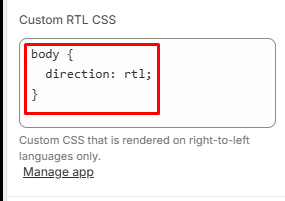
CSS styling added here is only applied to right-to-left languages. This includes the following languages:
- Arabic
- Hebrew
- Persian
- Kashmiri
- Kurdish
- Pashto
- Urdu
- Yiddish
By default, langify adds the basic RTL-styling: body { direction: rtl; }.
If your theme supports a right-to-left layout out of the box, feel free to remove langify's default CSS from this field in order to avoid unintended layout changes.
In case you need any assistance with custom RTL layout changes, please get in touch with us at support@langify-app.com.
Custom Font
You can also set a custom font for your translated pages. To learn more about this, please have a look at our guide How to Set a Custom Font.
Third-Party Apps
The Custom RTL CSS box can also be useful to adjust the langify language switcher, or the layout of content added by other third-party apps.
Please note that CSS for the checkout and the new customer account pages cannot be customized.