MP Size Chart is an official langify integration, developed together with the Shopplaza team. The integration is optimized for translations, so your size charts work seamlessly in every language of your store.

by Shopplaza
MP Size Chart adds customizable size charts and size guides to your product pages. Start from over 30 templates, convert units automatically, and use AI size recommendations to help shoppers find the right fit.
Enabling the Integration
The integration is only available on paid langify plans. To enable it, the MP Size Chart app also needs to be installed in your store and at least one size chart needs to exist.
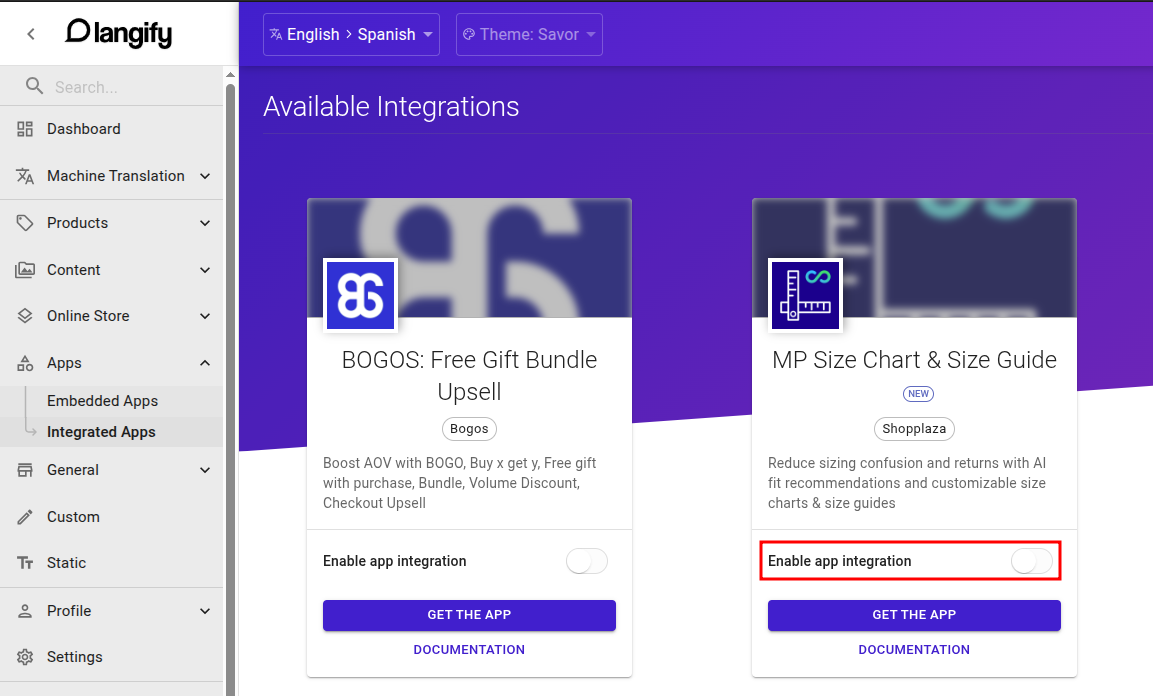
Go to langify > Apps > Integrated Apps > Available Integrations and turn on the Enable app integration toggle on the MP Size Chart app card. A new MP Size Chart menu item then appears in the left-hand menu, where you can manage your translations for the app.
You can disable the integration at any time. Your translations are kept, so if you re-enable it later, you can continue where you left off.
Translating Your Size Charts
In the MP Size Chart section, you'll find your size charts and sizing pages for translation. Open any of them and add your translations either manually or with machine translation.
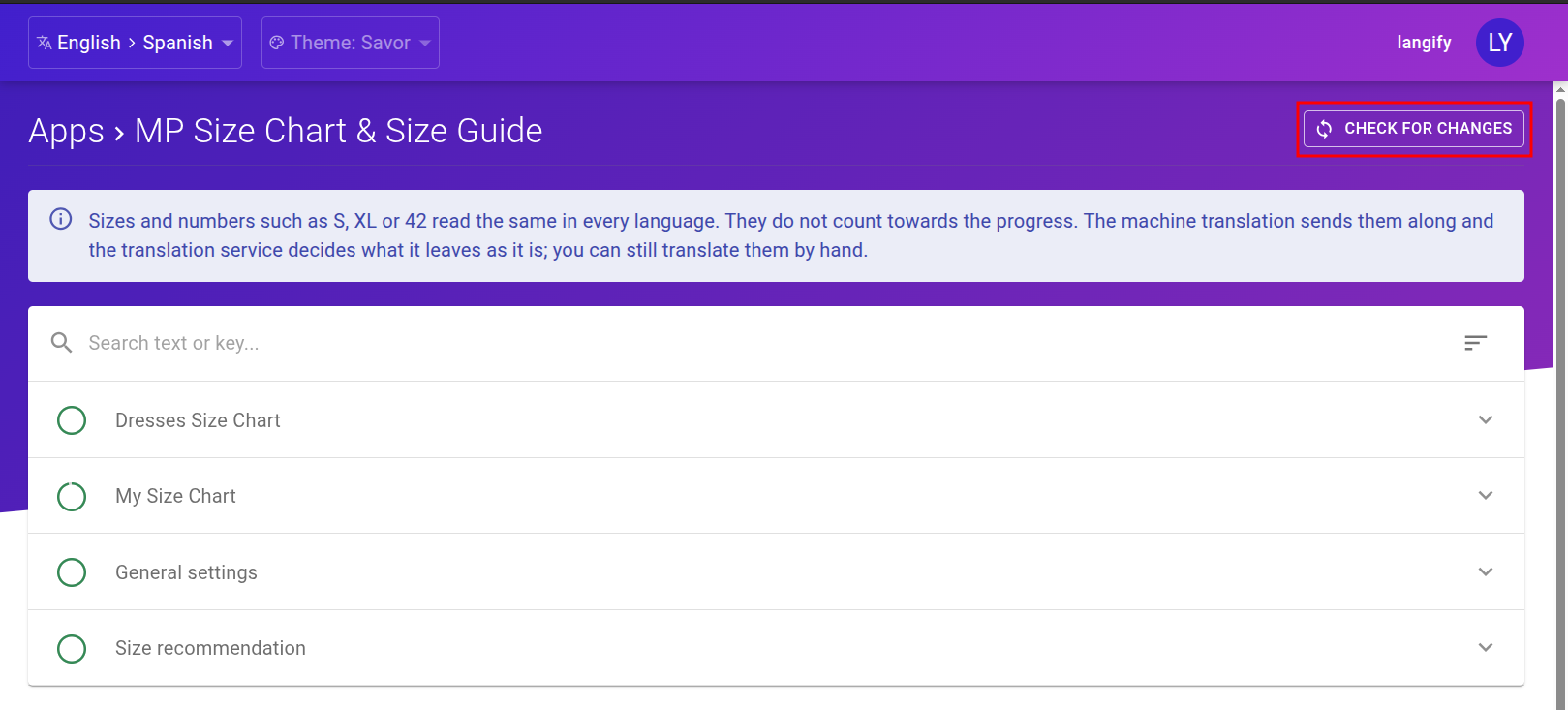
To translate all your size charts into multiple languages in one go, click Check for Changes in the upper right corner. The popup that opens is meant for content updates, but you can also use it to add machine translations: select the languages you want and click Update App Content.
Updating Translations After Content Changes
If you change your content in the MP Size Chart app, for example by editing text or adding or moving a block, make sure to update your translations afterwards. Otherwise, your translations will still display the old content.
Langify tries to detect content changes automatically. If it finds any, a popup appears when you open the MP Size Chart section. Use the Update App Content option in the popup to update your translations, or to translate the content into a new language.
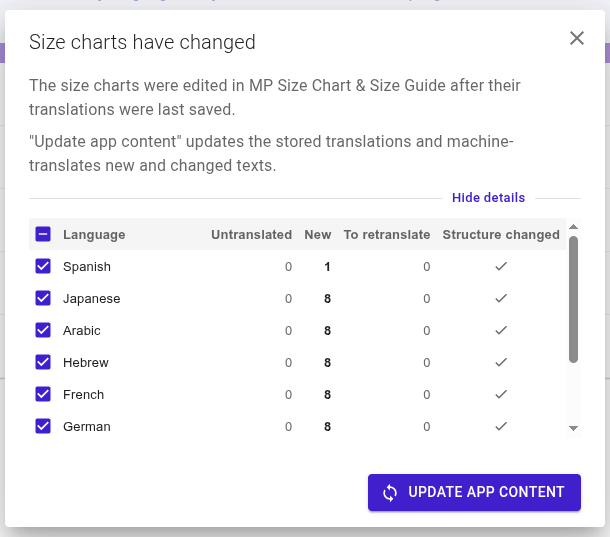
If you have dismissed the popup, it no longer appears automatically, including for later changes. To bring the popup back at any time, click Check for Changes in the upper right corner.