Some languages require a specific font to display correctly — Arabic script in particular can look rough with default system fonts, and many themes do not include a suitable fallback. This guide walks you through how to load a custom font and apply it only when a specific language is active.
This advanced guide requires basic knowledge of HTML, CSS and Liquid. If you are not comfortable with editing the theme yourself, contact us at support@langify-app.com and we can implement your custom font for you.
After adding a custom font, please double-check in your storefront if everything is still displayed correctly — especially icons and special characters. Keep in mind, that you might have to revert your changes in case anything has gone wrong.
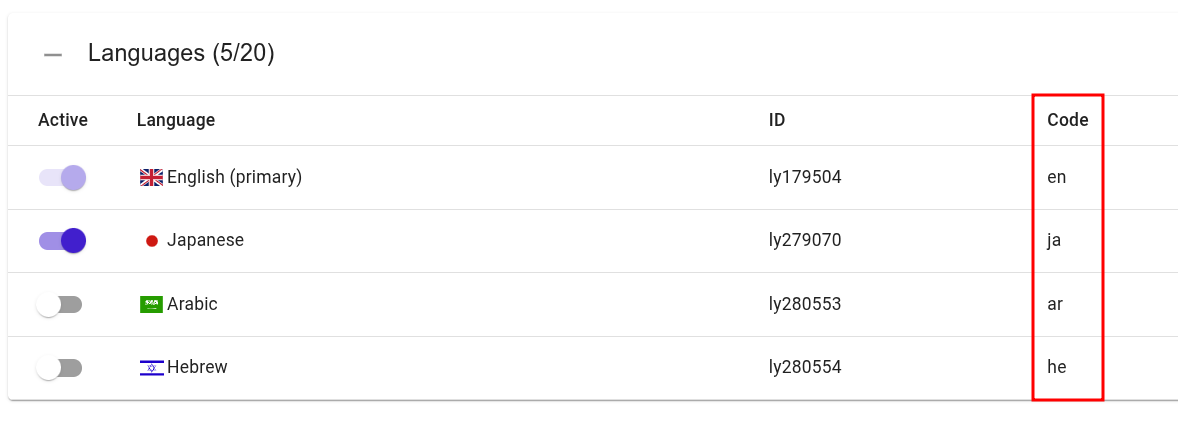
In the two examples below, the font will be applied to Arabic, because of the condition request.locale.iso_code == 'ar' where "ar" is the ISO code for Arabic. If you would like to apply the font to a different language, just adjust the language ISO code. You can find the ISO code in the Languages tab on the langify Dashboard.
Option 1 — Google Fonts
If your desired font is available on Google Fonts, this is the easiest route.
- Find your font on Google Fonts — for example, Tajawal for Arabic.
- Click Get Font in the upper right corner
- Click on Get Embed Code and copy the
<link>tag provided, for example:<link href="https://fonts.googleapis.com/css?family=Tajawal&display=swap" rel="stylesheet"> - Paste this tag into your
theme.liquid, wrapped in a Liquid condition so it only loads for the relevant language:{% if request.locale.iso_code == 'ar' %} <link href="https://fonts.googleapis.com/css?family=Tajawal&display=swap" rel="stylesheet"> <style> * { font-family: 'Tajawal', sans-serif !important; } </style> {% endif %}
Option 2 — Self-hosted Font File
If your font is not available on Google Fonts, you can upload it directly to your Shopify store instead.
- Upload the font file (e.g.
Tajawal-Medium.ttf) to the Content > Files section of your Shopify admin. - Add the following to your
theme.liquid, wrapped in a language condition:{% if request.locale.iso_code == 'ar' %} <style> @font-face { font-family: 'Tajawal Medium'; src: url({{ 'Tajawal-Medium.ttf' | file_url }}); } * { font-family: 'Tajawal Medium', sans-serif !important; } </style> {% endif %}
If your theme has a dedicated right-to-left CSS file, you can add the code there instead. In this case, use the content within the <style> tag only and skip the Liquid language condition.
Verifying the Font is Applied
It's easy to have a font load correctly in CSS but still not render as expected — for example, if another rule is overriding it. To confirm what font the browser is actually using:
- Open your browser's DevTools and inspect the relevant text element.
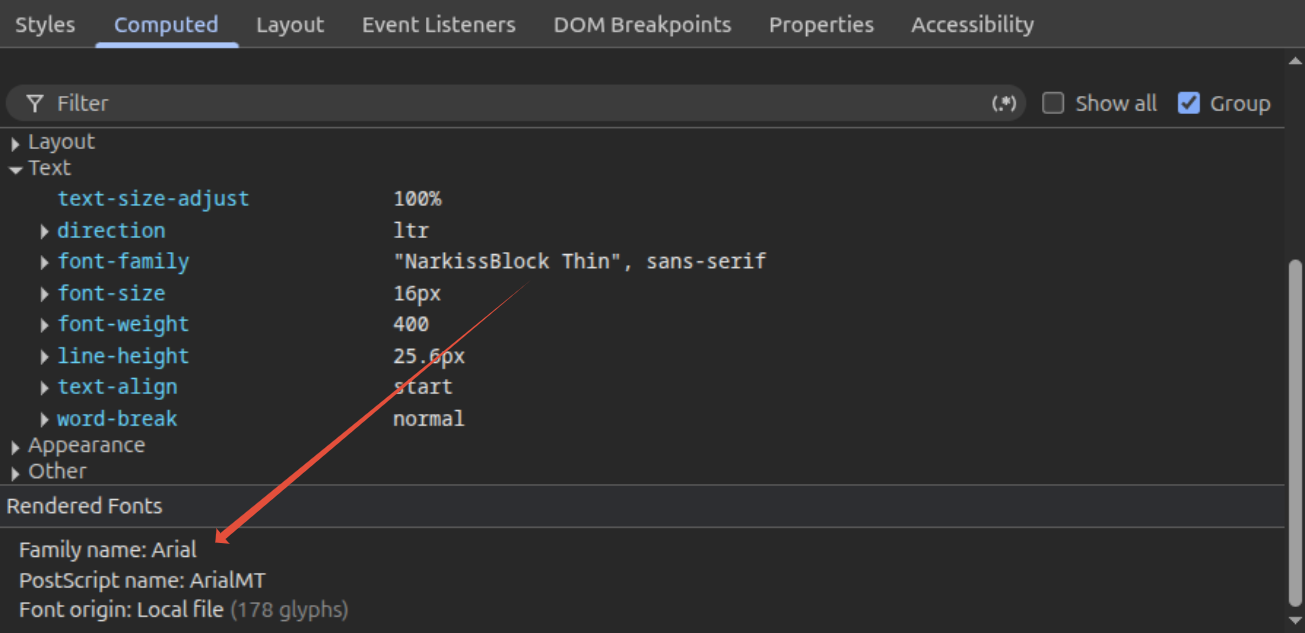
- Go to the Computed tab and look for Rendered Fonts at the bottom.
In the following example, you'll see that the font-family is set to "NarkissBlock Thin", but the Rendered Fonts section shows the fallback "Arial". This indicates the CSS is present but something is still preventing the font from loading. Double-check the font name, the file path, and whether any other rule is taking precedence.