How translations affect loading speed
Most translations are managed by Shopify's native translation system, meaning they are stored in Shopify's database and rendered server-side. These translations have no impact on your storefront's loading speed.
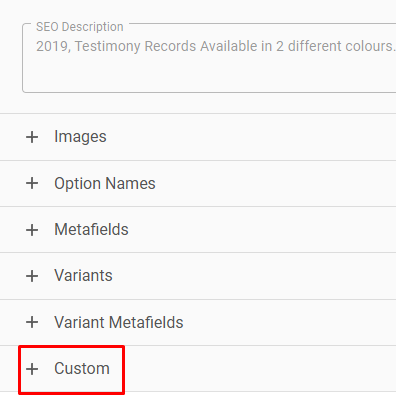
However, langify also supports the translation of content that Shopify's native system does not cover. These are the translations added in the Custom and Images sections, as well as global translations for product types, tags, and vendors. These are handled differently and can affect loading speed depending on how they are used.
Additionally, langify's language switcher with flag icons is rendered via JavaScript, and its two files may have a minor impact on loading speed.
Recommendations and Best Practices
Custom Content
Use Custom Content translations only when necessary. Most texts added via the Shopify admin can be translated in other sections — the Custom section is primarily needed for third-party app content.
- Keep it under 250 translations per subsection.
- Spread translations across the appropriate subsections (Frontpage, Product Pages, Collection Pages, etc.). In particular, avoid the Global subsection where possible, as those translations are loaded on every page of your store.
- If a translation is only needed on a single page or product, use the dedicated Custom subsection within that item instead. You can find it by opening the item in langify and scrolling down.
- Enable the Lazyloaded translations setting under langify > Dashboard > Theme Settings > Advanced Settings. This tells langify to only apply Custom Content translations to elements currently visible in the viewport. Note that this feature depends on a specific HTML structure, which some third-party apps may not follow.

- Add the langify Polyfill code to your theme. This allows langify to apply Custom translations server-side via Liquid, which is significantly more efficient.
Images
Image translations can impact loading speed because langify loads them across all pages of your store — this is necessary since a product and its images can appear anywhere, from collection pages to your homepage.
- Add image translations only when necessary.
- Where possible, use images without embedded text. Instead, add text overlays using the Shopify Theme Customizer.
Product Types, Tags and Vendors
These translations are applied server-side and only when the langify Polyfill code is installed. However, a large number of them can cause your theme to hit Shopify's memory limit during rendering.
- Add translations only when necessary.
- Translate product types directly on the product level rather than in the global section.
- Consider skipping vendor translations — vendors are often brand names that are better left untranslated to remain recognizable across markets.
Language Switcher
The langify language switcher loads two CSS files which can have a minor impact on loading speed. There are two ways to reduce this impact:
- Replace the langify switcher with your theme's built-in language switcher. Most up-to-date Shopify themes include one, and it can be enabled via the Shopify Theme Customizer.
A native theme switcher has limited styling options and cannot switch between different markets like the langify Market Domains switcher does.
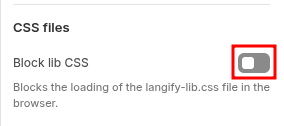
- If you are not using the langify switcher at all, you can also enable the option Block lib CSS, which blocks the langify-lib.css file of 2.7 kB.
A/B Testing
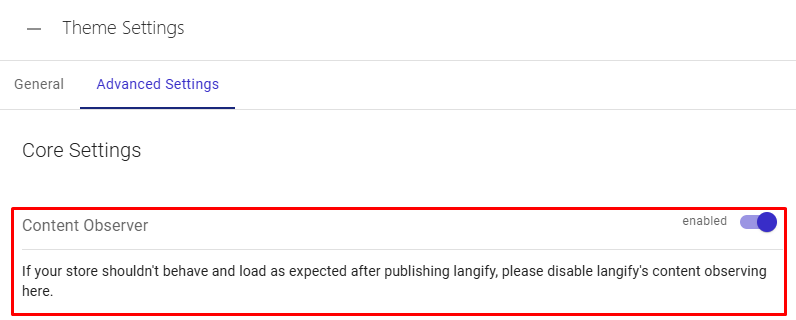
To measure langify's impact on your loading speed, you can temporarily disable langify via the App Embeds section in the Shopify Theme Customizer, or disable the langify Content Observer under langify > Dashboard > Theme Settings > Advanced Settings.