
Langify can be published to your theme as an embedded app. Within the embedded app section you will find additional settings - some of them mandatory, some of them optional. Click on Enable langify to open and view these settings:
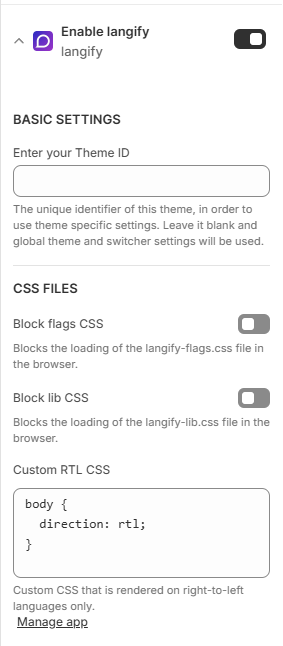
Below you will find further details on each setting.
Basic Settings
Enter your Theme ID
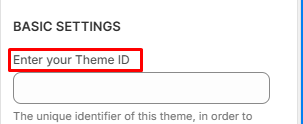
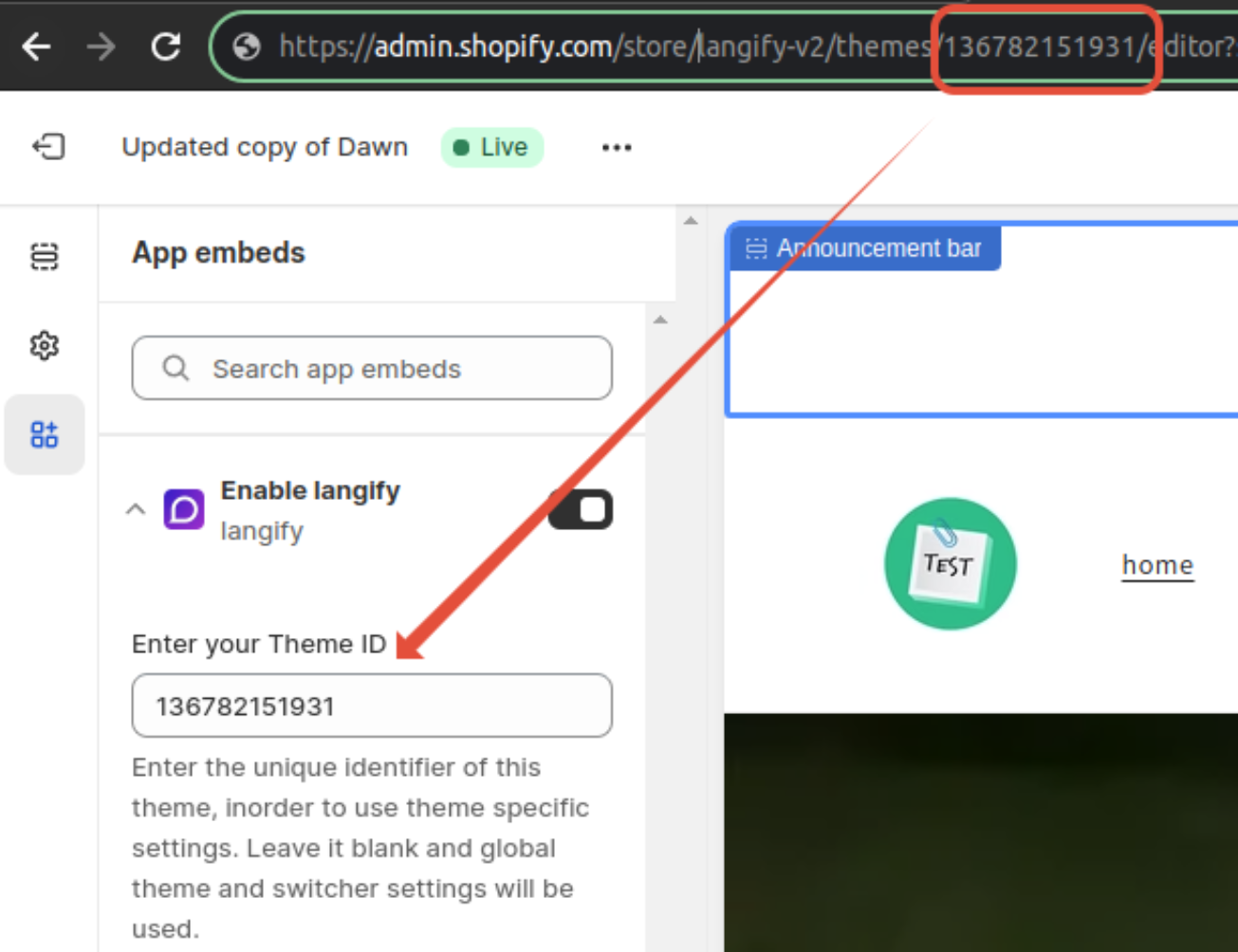
Entering your Theme ID links langify’s theme settings (Switcher Configurator and Theme Settings) to your current theme.
The theme ID entered here should always reflect the ID of your current theme.
CSS Files
Block flags CSS
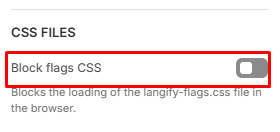
This option has recently been removed as langify no longer loads flags via the flags CSS file. Flag icons are now optimized by loading only the necessary icons from Shopify. If you still prefer to hide the flag icons, please go to the langify Switcher Configurator > Appearance > Icon and set this to "No icons".
Block lib CSS
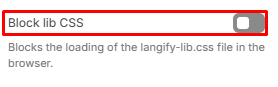
If this option is enabled and the langify-lib.css file blocked, it can have a positive impact on loading speed.
Do not enable this option if you are using a langify switcher. The CSS file is necessary to correctly render the switcher. If it is blocked, the switcher will automatically be hidden.
Custom RTL CSS
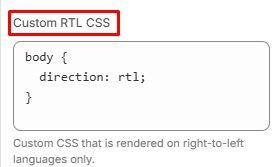
If you have a right-to-left language in your store, you can add additional CSS in this box in order to adjust the layout if your theme is not optimized for this out of the box.
This CSS will be applied for right-to-left languages only. These are:
- Arabic
- Hebrew
- Persian
- Kashmiri
- Kurdish
- Pashto
- Urdu
- Yiddish
Manage App
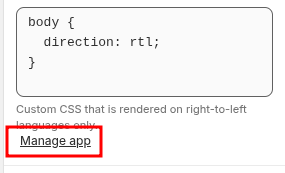
Finally, you can jump directly into the langify app by clicking the Manage App option.