
In the Advanced Settings, you can adjust how langify's translation code interacts with your storefront.
You can find this section in the langify Dashboard. Open the Theme Settings tab, then go to the Advanced Settings subsection.
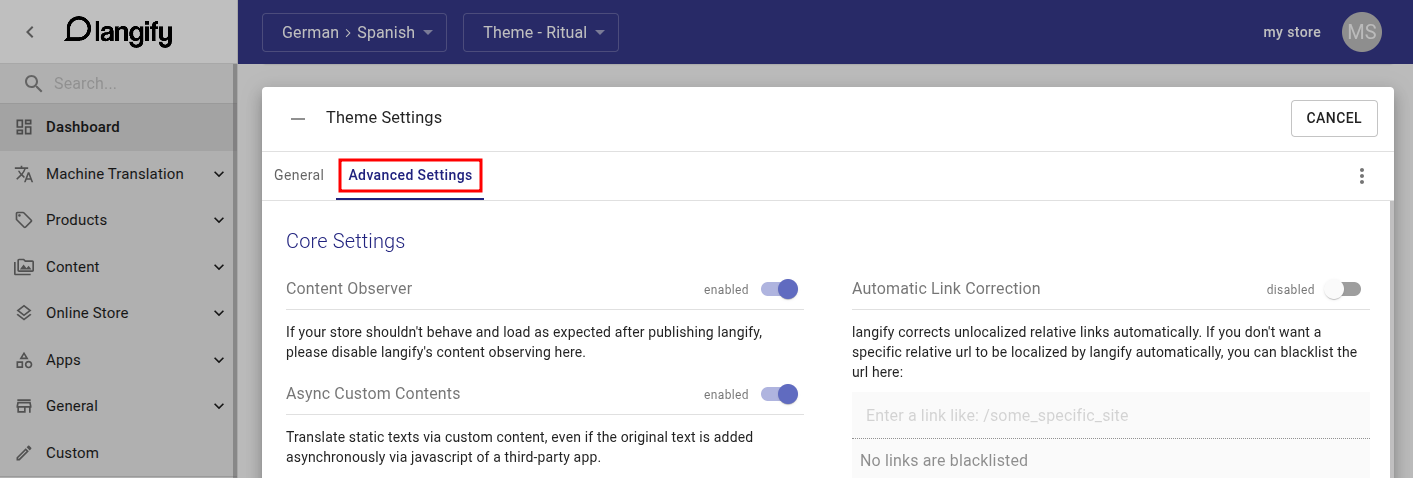
These settings will only take effect if langify is published to your theme. If you edit them, please make sure and that the theme ID within the langify embedded app settings is correctly set as the ID of your current theme. Otherwise, your changes will not be applied.
Below, you will find further information on each setting.
Content Observer
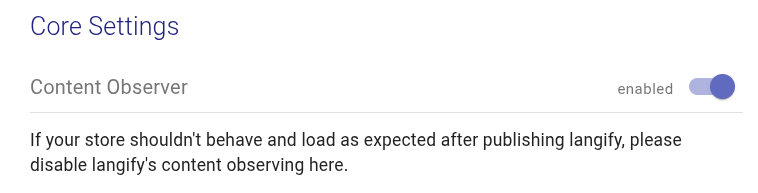
Default: enabled
The Content Observer checks your storefront content for changes in real time. This enables langify to apply Custom Content and image translations. It's especially useful as many third-party apps change their texts when users interact with them. With the Content Observer, langify can react to these changes and update translations whenever necessary.
If the Content Observer is disabled, all connected functions — such as Async Custom Content, Use Placeholder Matching, Image Translation, and Automatic Link Correction — are also disabled.
Async Custom Contents

Default: enabled
The Async Custom Contents option allows langify to apply Custom Content translations to content that is not present on the initial page load but is instead loaded asynchronously via JavaScript. This is often done by third-party apps.
Lazyloaded Translations
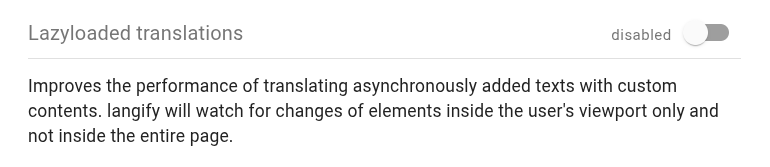
Default: disabled
If this option is enabled, langify will apply Custom Content translations only to the items that are visible in the user's browser viewport. This can improve loading speed, since langify needs to observe and manage less content. However, it depends on a strict HTML structure, and not all third-party apps fit into this.
If you decide to enable this, please double-check that all Custom Content translations are still applied in your storefront.
Use Placeholder Matching

Default: disabled
The Placeholder Matching is an option to extend the capabilities of standard Custom Content. If this is enabled, you can create Custom Contents that contain placeholders/wildcards. For more information, please check our guide Custom Content with Placeholder Matching.
Image Translation

Default: enabled
With the Image Translation option enabled, langify will apply translations of images that have been added in the Images or Custom section.
Image translations added within the Theme section or metafields are not affected by this setting.
Automatic Link Correction
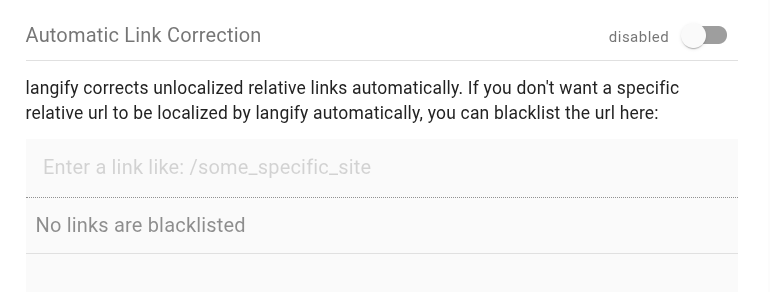
Default: disabled
The Automatic Link Correction is useful if your theme contains unlocalized links - meaning, the links are missing the current language's subfolder. This can happen if the links are hardcoded, or if you are using an older theme or app that is not up to date with the Shopify guidelines.
With this setting enabled, langify will automatically localize these links, so visitors stay on the same language while browsing your store. You can find more information on this topic in our guide Links on my page point to wrong language.
Example:
- You’re browsing the French version of your store at my-store.com/fr.
- A product link on that page points to my-store.com/products/my-product (it’s missing /fr), which would open the English page.
- Automatic Link Correction detects this and inserts the missing language subfolder.
- The link becomes my-store.com/fr/products/my-product, keeping the visitor on the French site.
If there are links that should be excluded from being localized, you can add these links to the blacklist.
Non-Strict Mode

Default: disabled
If you have translated your product types and vendors in the langify Product section, then it is necessary to enable the Non-Strict Mode in order to apply these translations. Additionally, please add the langify Polyfill code to your theme.
Note that the translation of product types and vendors is only done server-side via Liquid. If these texts are however loaded per JavaScript on your store page, then these translations cannot be applied. If that is the case, please don't hesitate to reach out to our support at support@langify-app.com and we can set up a custom translation script to enable langify to translate the product types and vendors.
Save Language Code in Cart

Default: disabled
Storing the langify language code in Shopify cart attributes is intended for backward compatibility on stores with a custom setup.
This option is only relevant to developers looking for a way to add the customer's language information to the cart data.
Debugging

Default: disabled
With the Debugging enabled, langify will output information in the browser console about its JavaScript activity.
If it is not actively being used for debugging, it should stay disabled.
Load jQuery
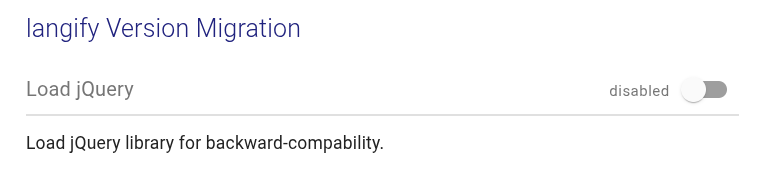
Default: disabled
This option is for backward compatibility only. If enabled, it will load an older jQuery version from https://cdn.jsdelivr.net/jquery/1.9.1/jquery.min.js into your store.
Enable this if custom scripts were added to your store that rely on this JavaScript library.
Configuration Actions
If you click the three-dots icon in the top-right corner, you will find additional options to re-save, export and import the settings.

Export and import can be useful if you quickly want to migrate the settings from one theme to another, or even to a different store.