
This guide helps you recognize and fix image issues in translated languages. Find the issue that matches what you are seeing, then follow the steps to resolve it.
In case none of this helps, don't hesitate to reach out to us at support@langify-app.com.
The translated image appears broken
A translated image may show as a broken icon in the storefront instead of the expected image:
Possible cause: The original file name is too short
Very short file names (for example, 1.png or 234.png) can sometimes cause unexpected behavior.
- In your Shopify admin, go to Content -> Files.
- Open the original image and rename it to something longer and descriptive, such as
product-image-01.png. - In langify, go to the item where you translated the image and upload the translated image again.
Possible cause: The translated image was removed or renamed
- In langify, open the product, collection, or article where you translated the image and go to the Images section.
- If there are image translations pointing to broken images, langify will show a warning banner at the top of the section:
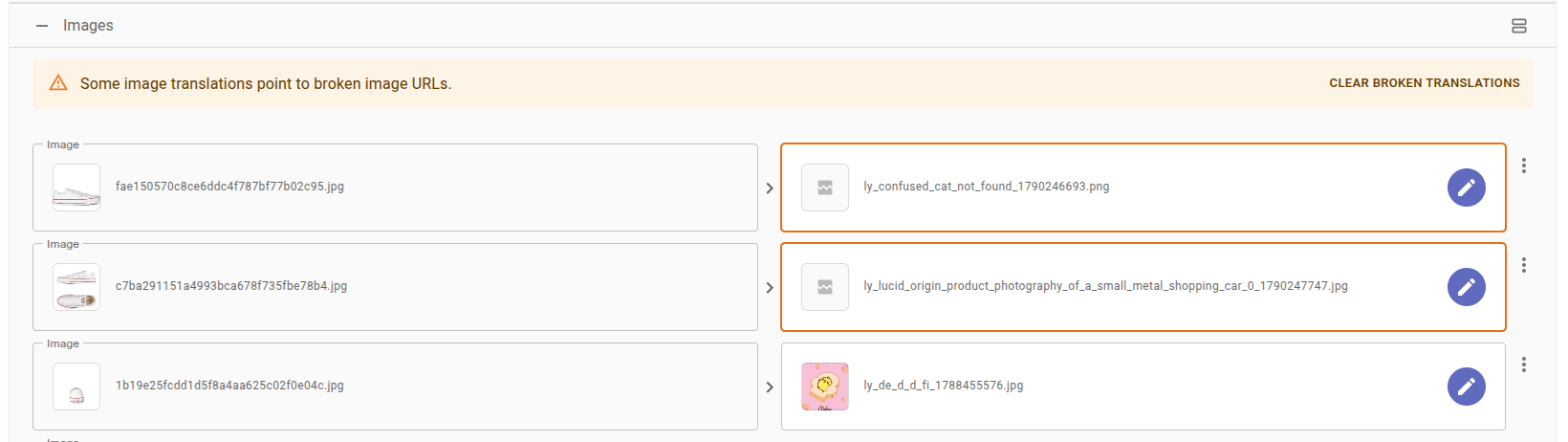
- Click the yellow Clear Broken Translations option on the right of the warning banner and save the change.
An image translation in other sections like Custom Content, Theme or Metaobjects will simply display the translated image as broken.

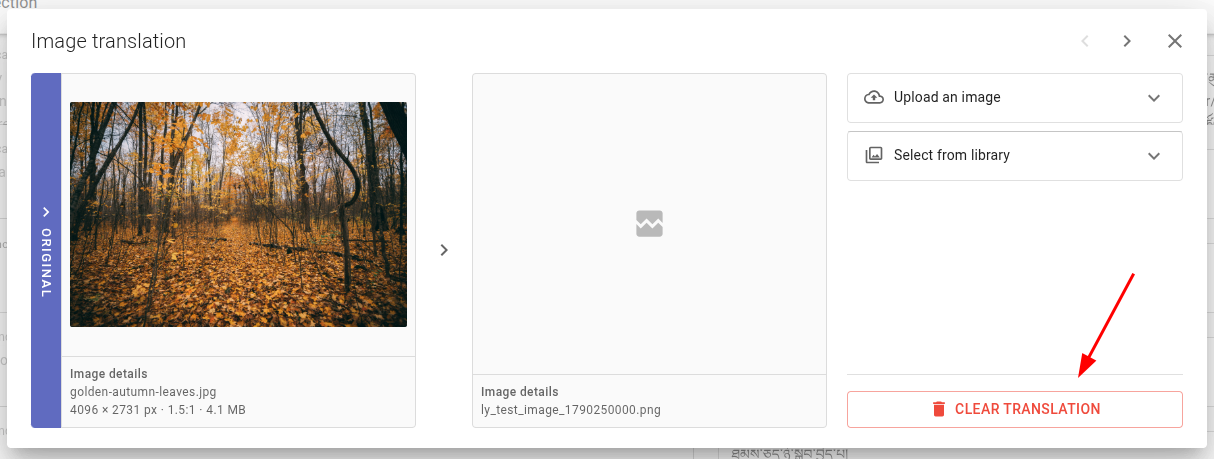
Open the image translation popup by clicking on the image's translation field. Then click on Clear Translation to remove the broken image translation. Afterwards save the change.
Please take care not to delete or rename images in the Shopify Files section that are used for translation. Renaming an image will also change its URL.
The translated pages still show the original image
After translating an image in langify's Images section or via Custom Content, the storefront may still display the original image.
Possible cause: langify is not published to your theme
Images translated in langify's Images section only apply if langify is published. See Publishing langify for instructions, then check the page again.
Possible cause: The Image Translation setting in langify is not enabled
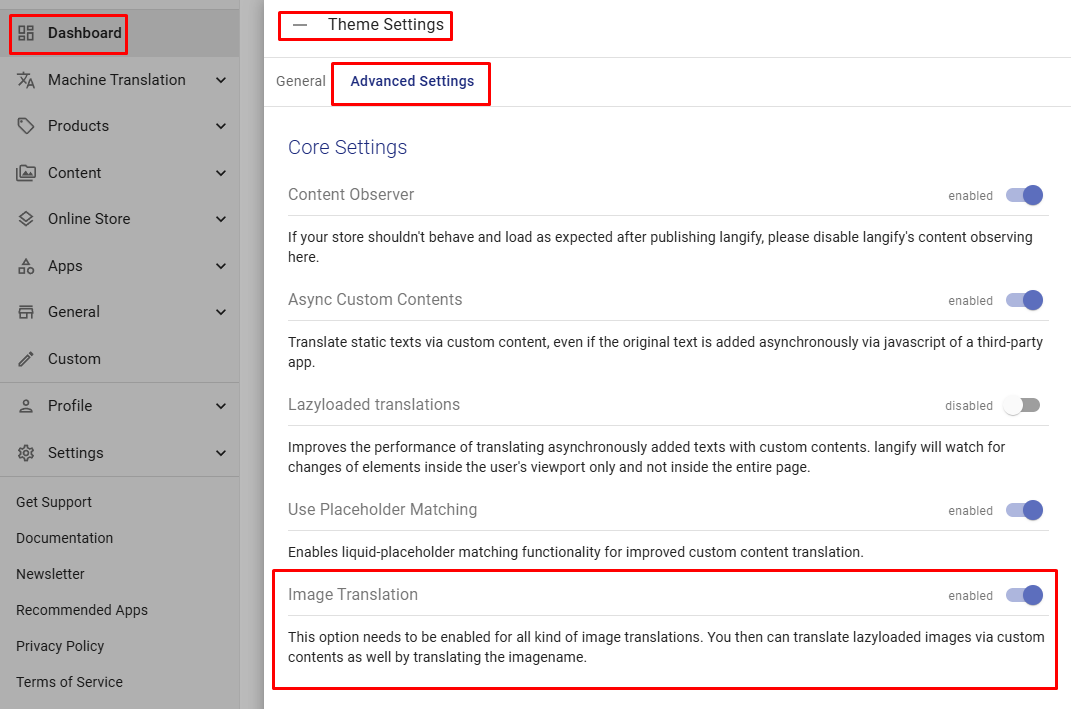
- In langify, go to Dashboard -> Theme Settings -> Advanced Settings.
- Check that the Image Translation option is enabled. It is active by default but may have been turned off accidentally.
The image field for a product is empty in langify
When you want to change an image translation, the image section for a product in langify may appear empty even though an image translation is displayed in your storefront.
Solution: Find where the image is being translated
The image may be shared across multiple items and translated on a different product or collection.
- In Shopify, go to Content > Files.
- Find the image and click Referencesto see all items that use it.
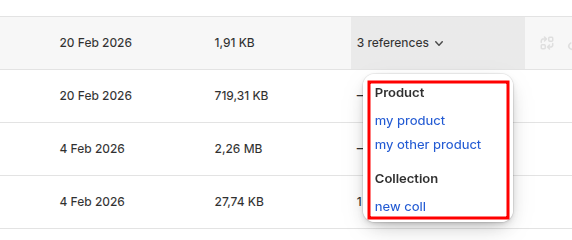
- In langify, check the Images sections of those items to find where the translation is set.
The translated pages still show an old version of the image
After updating an image in the Shopify Theme Customizer, translated pages may still display the old version.
Solution: Remove the outdated translation in langify
- In langify, go to Online Store > Theme.
- Search for the name of the new image.
- Remove the existing translation.
- After a few seconds, check the translated pages to confirm the updated image is now showing.
This video shows an example of how to fix it.
The article image translation suddenly stopped working
An article image translation may stop working after editing the article text in the Shopify admin.
Solution: Find the article in langify and open it to trigger a re-sync
Unfortunately, Shopify may update the URL of the original article image whenever there is any change to the article. Opening the article in langify will prompt langify to re-sync the article's image. Afterwards your image translation should work again in all languages.