
Product types can be translated in three different ways. Whichever approach you use, always check that your storefront's filter functionality still works as expected afterwards. If something looks off, revert your last translation and reach out to our support team.
| Translation Method | Store Performance | Risk of Issues | Setup Effort |
|---|---|---|---|
| Global Product Type | ● Variable* | ● Low | ● Low |
| Custom Content | ● Variable* | ● Low | ● Variable* |
| Product-Specific Type | ● Low | ● High | ● Low (But might require manual fixing) |
* Depends on the number of types you need to translate.
1. Global Product Type Translation
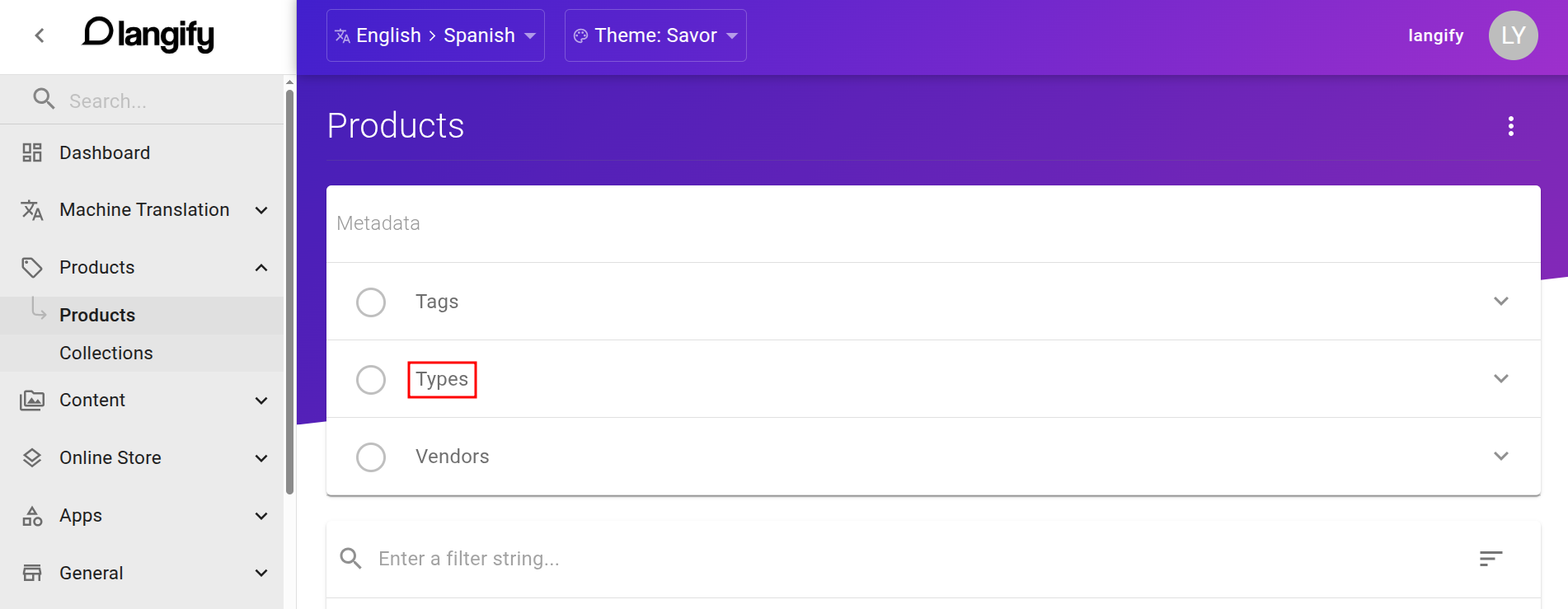
This is the easiest method, but it only translates product types if their text appears identically across your storefront. You can find this section at langify > Products > Types, at the top of the Product section.
Applying the translations to your theme
Because these translations carry a risk of interfering with the theme code, activating them takes an additional step. To apply these translations to your storefront, enable the option Product Type Javascript Translation at langify > Settings. This is a global setting, applied to all themes in your store.

2. Custom Content Translation
This can be a solution if your theme appends a result counter to the filter, for example Blue (6) instead of just Blue. In this case, Custom Content with Placeholder Matching can do the trick.
It is recommended to add these translations in the Global Strict Mode subsection. This subsection is specifically designed for translations that carry a risk of negatively interacting with the theme code.
3. Product-Specific Type Translation
This is the native Shopify translation method. It is technically the cleanest approach, but comes with some caveats:
- The type has to be translated on each product individually, even if it shares the type with other products.
- A machine translation might not turn out consistent, as the same type can be translated differently across products. This causes the filter to appear multiple times, once for each unique translation.
You can find this translation field when you open a product in langify:
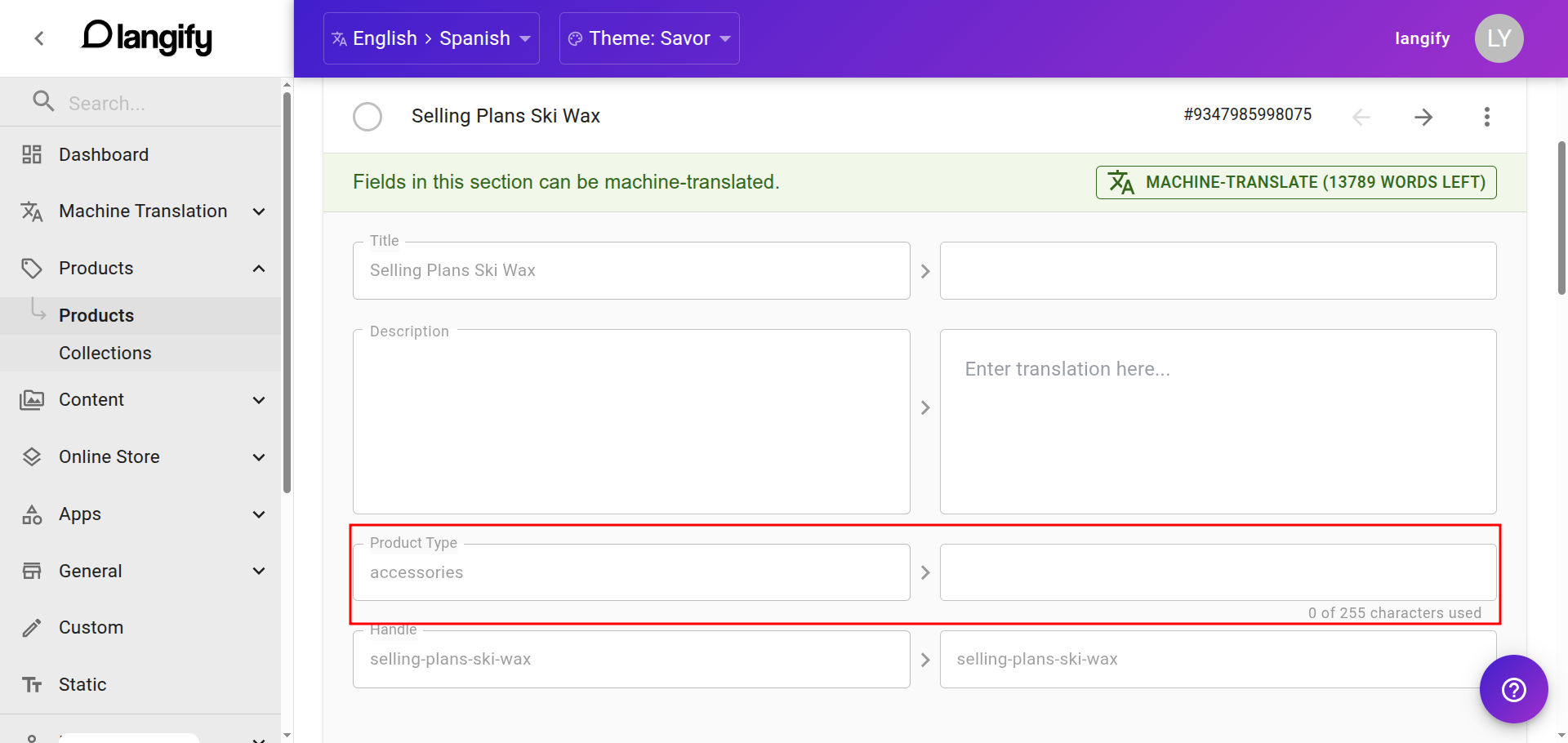
If you would like to bulk-translate these product type fields, note that they are excluded by default, but can be enable in the Bulk Translation tool settings.
While Custom Content and Global Product Type translation can work together if necessary, the product-specific Product Type translation approach should not be combined with either of the other two. Doing so is likely to produce duplicated filters in your storefront.