
Generally, you can translate all Shopify metaobjects in langify. For an overview what metaobjects are and how to create them in Shopify, check out the guide at https://help.shopify.com/en/manual/custom-data/metaobjects
Where to Find Your Metaobjects in langify
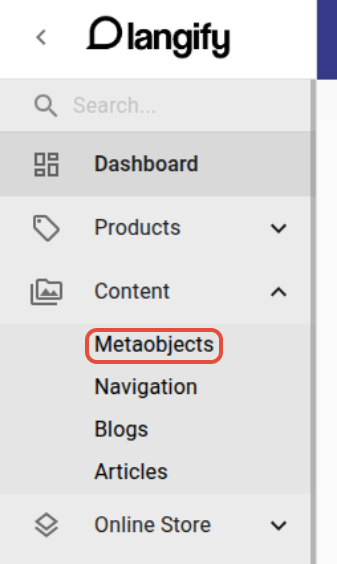
You can find the Metaobjects section in the navigation bar on the left under Content.
If this is the first time you enter the Metaobject section, langify might ask for new permissions in order to access the content and translations for metaobjects.
Metaobject Search
If your store has a lot of metaobjects, please have a look at our advanced guide How to identify Metaobjects for translations which explains in more depth how to find metaobjects.
You can use the global langify search bar in the upper left corner to search your metaobjects by title or ID.
When you open the Metaobject section, langify will display all items by default. If you're looking for a specific metaobject, you can enter its display name, handle or Shopify ID in the search bar at the top of the section:

If you're looking for the metaobjects of a specific definition, you can use the dropdown menu to filter for one definition:

You can also sort the result by ID, definition type, "updated at" date or name.
Translatability
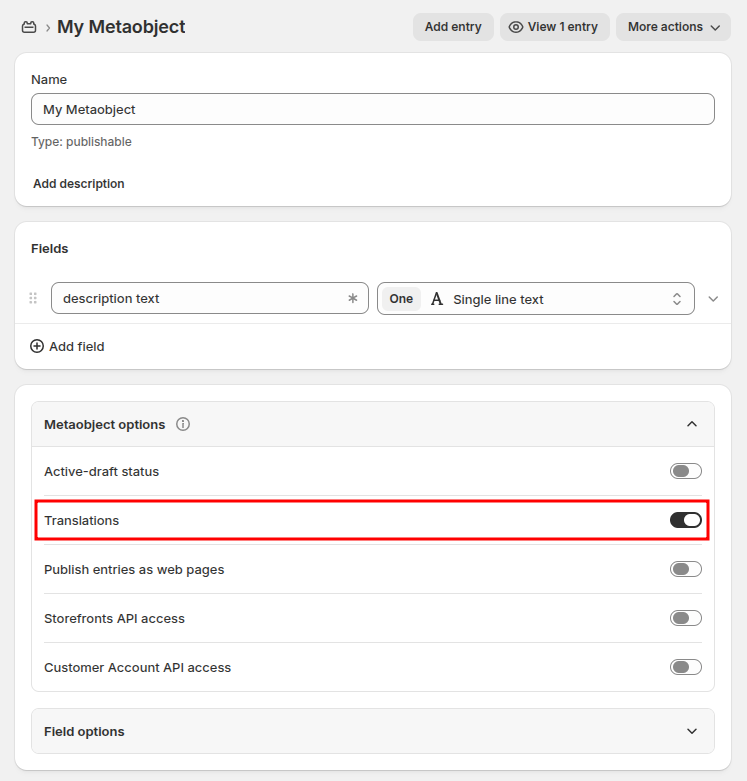
Unlike any other section in Shopify, metaobject definitions have their own translatability setting. If you want to translate the metaobject, please make sure that "Translations" is enabled in the metaobject's definition settings in your Shopify admin.
Validation
When you create your metaobjects in Shopify, you might have added a validation to any of its subfields, for example a character max or min. Note, that the same validation restriction applies to the translation.
If you try to add a translation that does not conform to the given validation, the translation cannot be saved and langify will show you an error message.

Export/Import
Currently, langify does not have an export/import option for metaobjects. You can however simply use the native Shopify export/import option instead.