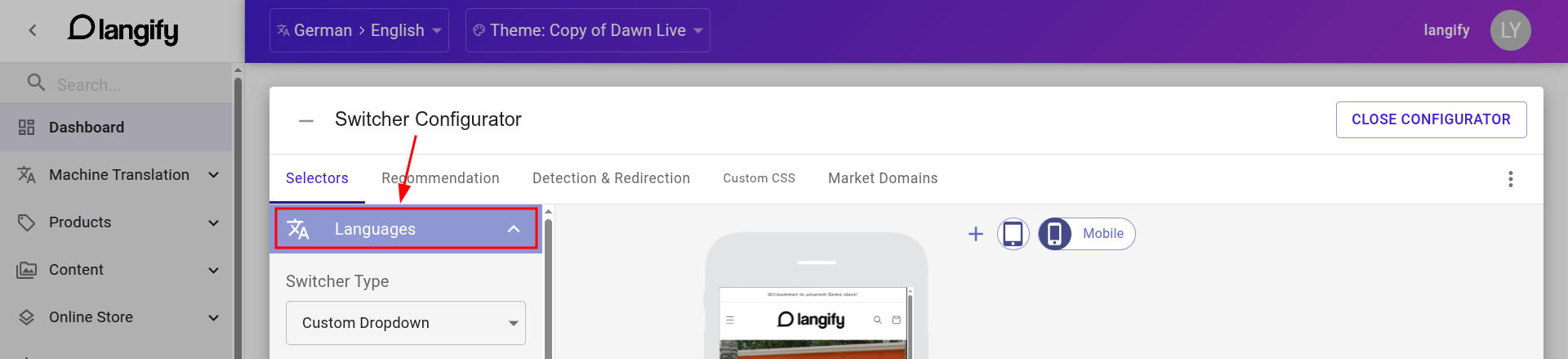
In the langify dashboard, open the Switcher Configurator tab and select the Languages tab. Here you can choose the switcher type and rename the language labels, change their order or upload a custom flag icon.
Choose a Switcher Type
Six different options are available in the Switcher Type dropdown menu. Choose what you prefer and save.
- Custom Dropdown — languages with label and icon within a dropdown element
- Native Dropdown — plain text language labels, native browser element
- Popup — clicking on the switcher will open a popup to display the language options
- Link — languages with label and icon
- Link-List — wraps the links in an HTML list element
- None — hides the switcher
The following video shows examples of all switcher types.
Label, Order, and Flag
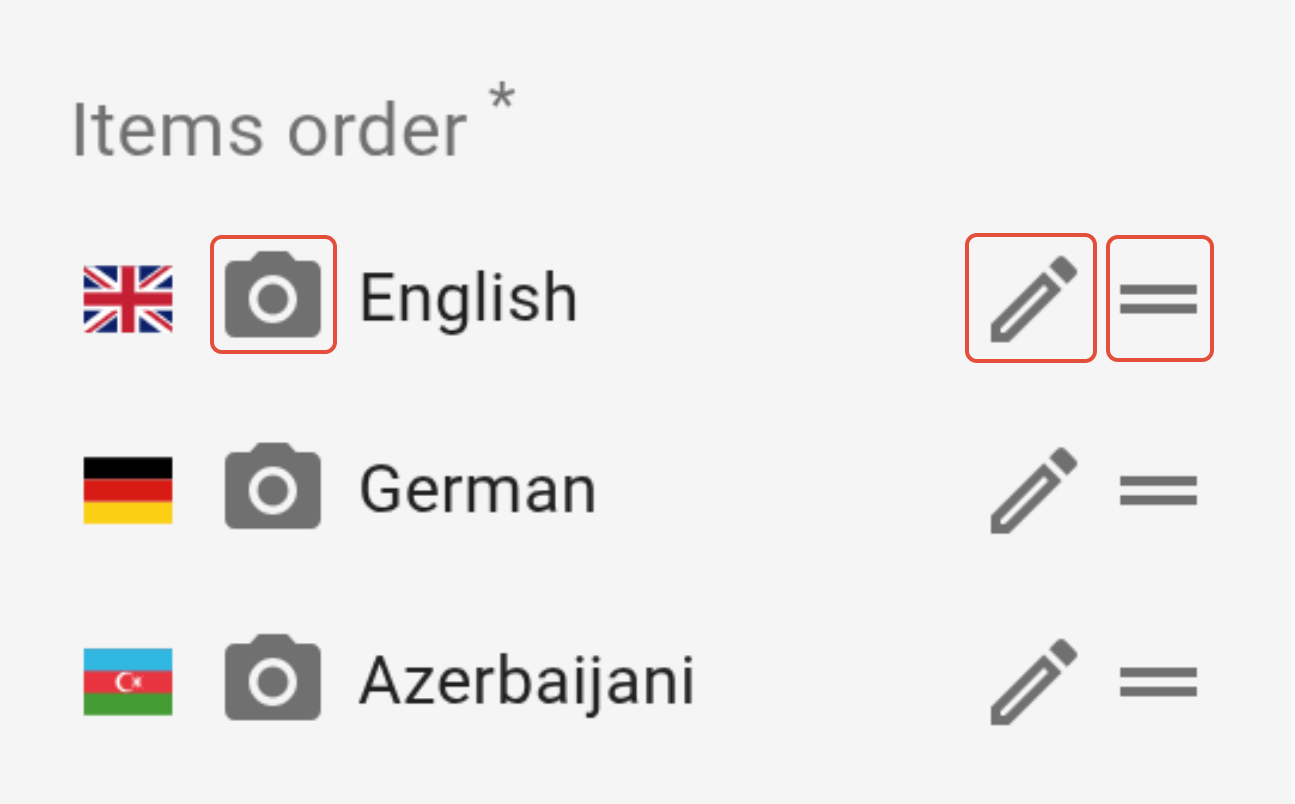
You can edit the language label, change the order of languages and upload a custom flag icon in the Items order section within Languages.
- Edit label — Click on the pencil icon to the right of the language. Edit the name and save.
- Change order — Click on the = icon to the right of the language and change the order via drag & drop.
- Upload flag — Click on the camera icon to the left and upload any custom icon for your language. For the best resolution, upload an image with a height of around 40px, or use an SVG icon.
If you're using the Market Domains option, please go over to the respective tab Market Domains in order to make any of these changes.