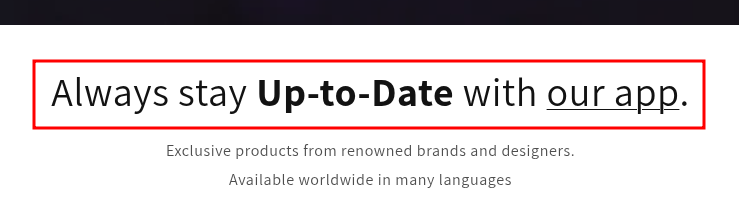
Translating Custom Content can be tricky when the text has a more complex HTML structure — for example, when it is spread across multiple paragraphs, or when parts of it are bold, emphasized, linked, or otherwise formatted.
Due to the formatting, each part is wrapped in its own HTML tag — such as <strong> or <a> for inline formatting, or <p> for separate paragraphs. Each part needs its own Custom Content entry.
It is recommended to use the browser's Inspect tool to view the exact HTML structure of your text before creating your Custom Content entries.
The Inspect tool is a built-in browser feature that lets you view and explore the HTML of any webpage. You can find more general information in DreamHost's guide to the Inspect tool.
Watch the video or follow the step-by-step guide below.
Step-by-step Guide
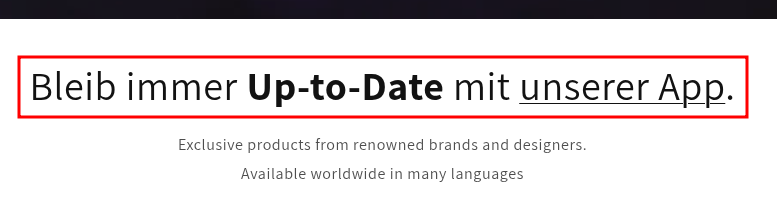
In this example, we want to translate a text from German to English via Custom Content. The text contains both a bold part and a link:
Step 1 — Open the Inspect Tool
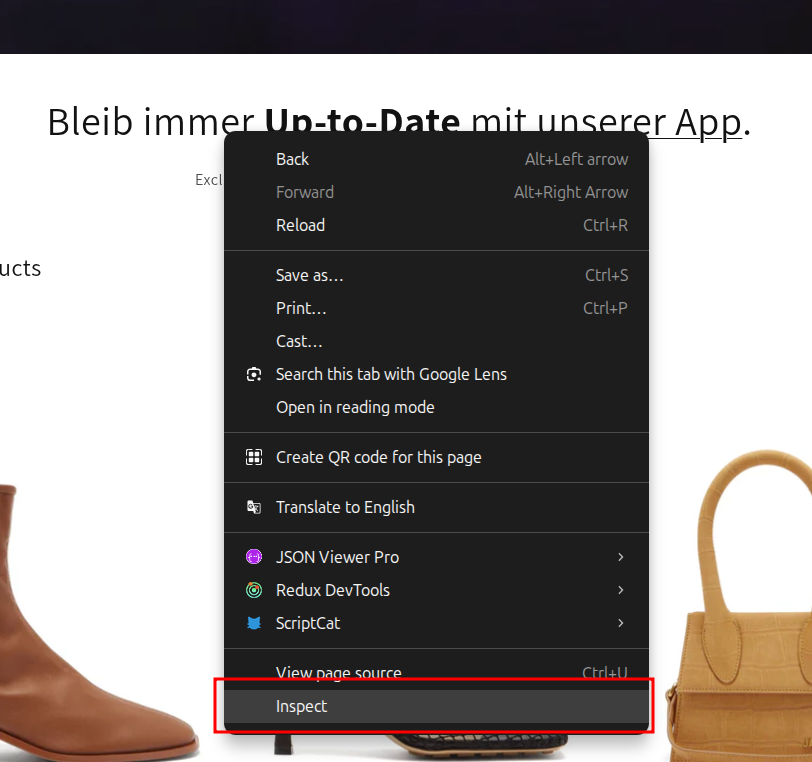
Right-click on the text you want to translate in your storefront and select Inspect from the dropdown menu. The exact label may vary depending on your browser.
Step 2 — Identify the HTML Structure
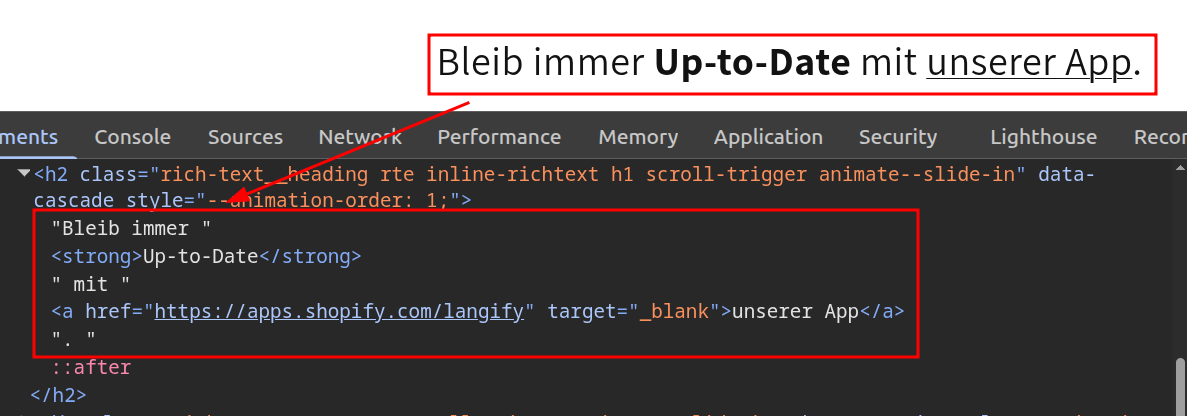
View the HTML to see the exact structure of the text. In this example, the text is divided into 4 separate parts:
Bleib immerUp-to-Datemitunserer App
Step 3 — Create the Custom Content Entries
Create one Custom Content entry for each part. For this example, that's 4 separate Custom Contents in total.
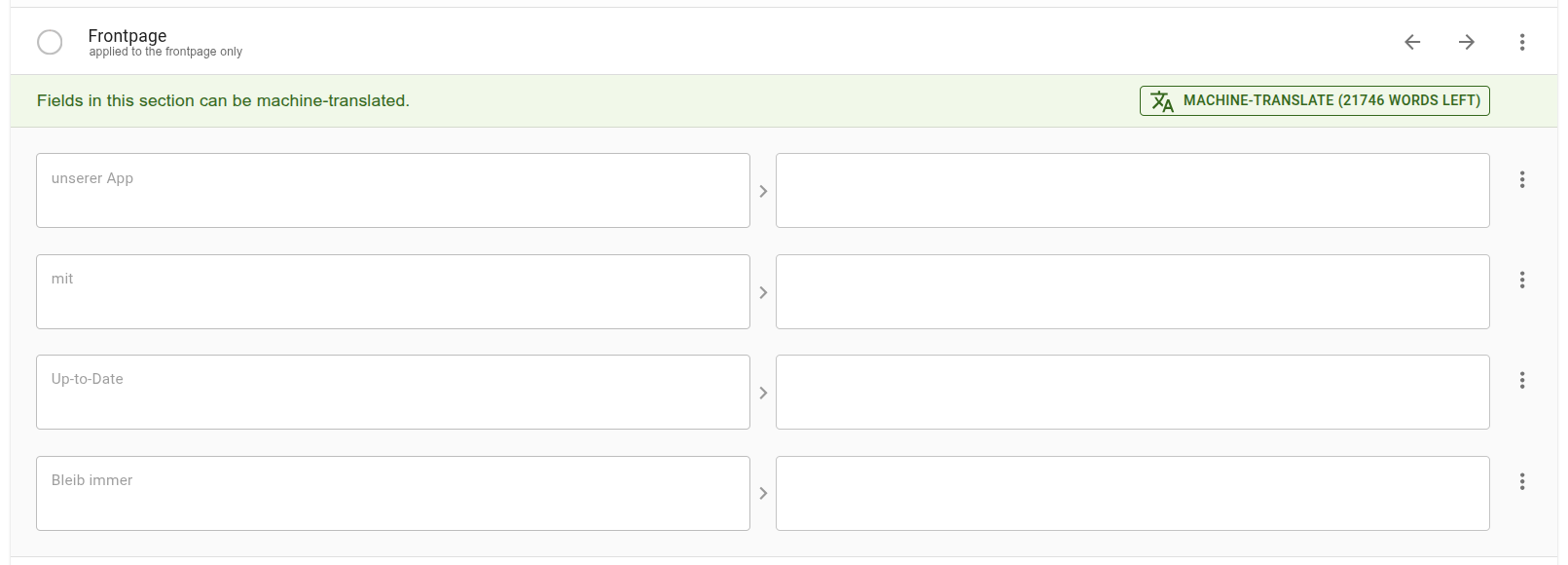
Step 4 — Add Your Translations
Add your translations to each entry and save.
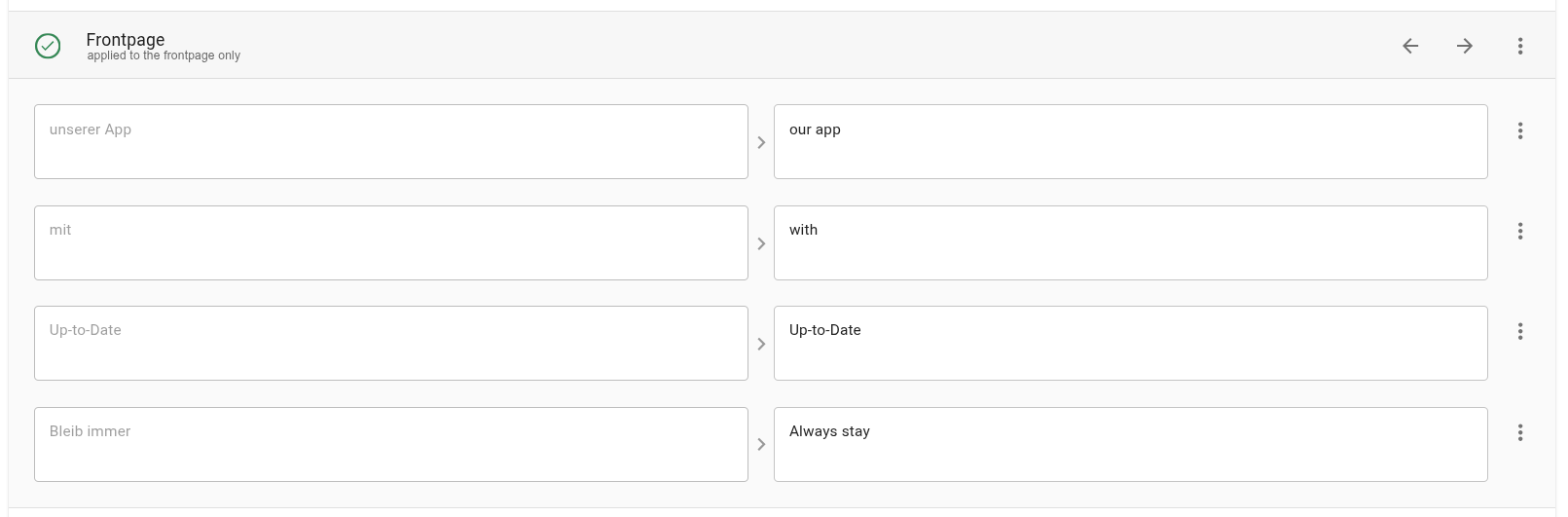
Step 5 — Verify the Result
Go back to your storefront and reload the page to confirm the translations have been applied correctly.