
This is an advanced guide on how and when to use placeholders in Custom Content translations.
If you are not familiar with Custom Content, please read our general guide Custom Content Translations first.
What are Placeholders
Placeholders act like wildcards or jokers, representing any type of content such as words or numbers. They allow for flexibility and adaptability in various contexts.
When to Use Placeholders
They are especially useful for dynamically changing content. This is often the case with cart, review, or loyalty apps. These apps may contain texts like:
You are $42 away from free shipping
Based on 123 reviews
You have 404 loyalty points
Because the numbers within these texts will vary greatly, normal Custom Contents are not sufficient.
With the placeholder matching feature this becomes easy to manage.
Please note that placeholder matching requires additional computing resources. We recommend using it moderately to ensure optimal loading speed for your store.
How to Use Placeholders
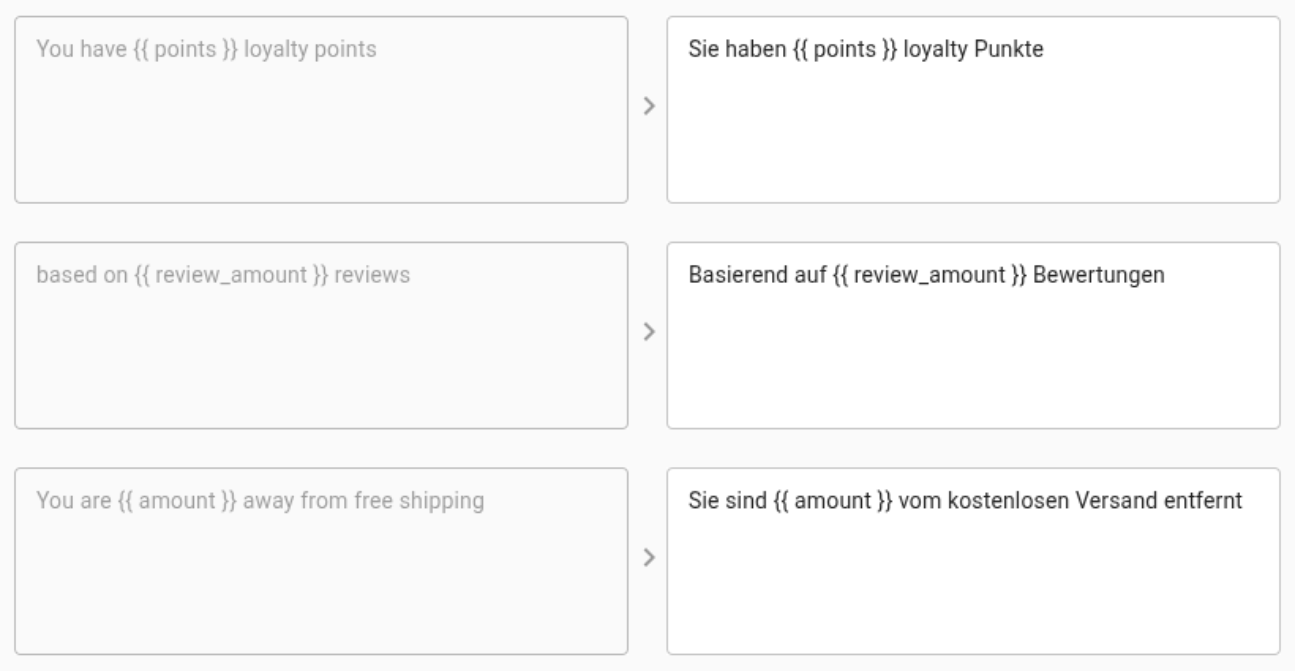
Generally, the placeholder is marked by curly brackets {{ and }}. The word you put inside the brackets is up to you. Just make sure that you use exactly the same word in the translation field.
According to the three examples above, here are three Custom Contents that would translate them:
How to Enable or Disable Placeholder Matching
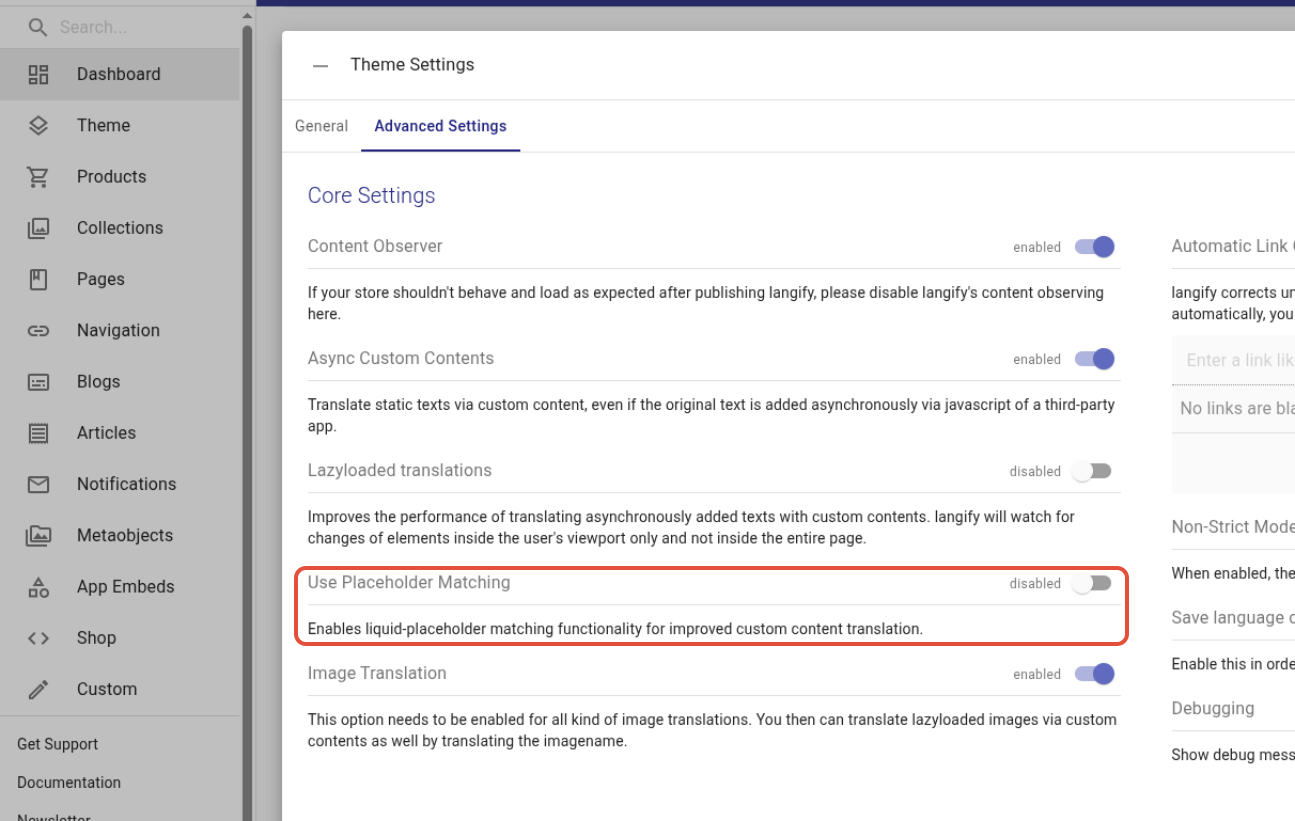
Because the feature is still new, it is disabled by default.
If you create a Custom Content with curly brackets, langify will automatically ask you if you would like to enable the feature:

Simply click on "Update Theme Settings" and you're good to go.
Alternatively, you can enable or disable it at any time by going to langify -> dashboard -> Theme Settings -> Advanced Settings
Tips and Tricks
Multiple placeholders: You are not limited to one placeholder in your custom content. If needed, you can set up multiple placeholders within one custom content.
Example:
Please add {{ amount }} more items to your cart to receive {{ product name }} for free. | Bitte legen Sie weitere {{ amount }} Artikel in Ihren Warenkorb, um {{ product name }} kostenlos zu erhalten. |
Position of the placeholder: Different languages require different syntax. You can freely adjust the placeholder's position within the translation to ensure it fits accurately.
Machine translations: Usually, there should be no issue when applying machine translation to Custom Content containing placeholders. However, we recommend double-checking the translation for any inconsistencies or irregularities.