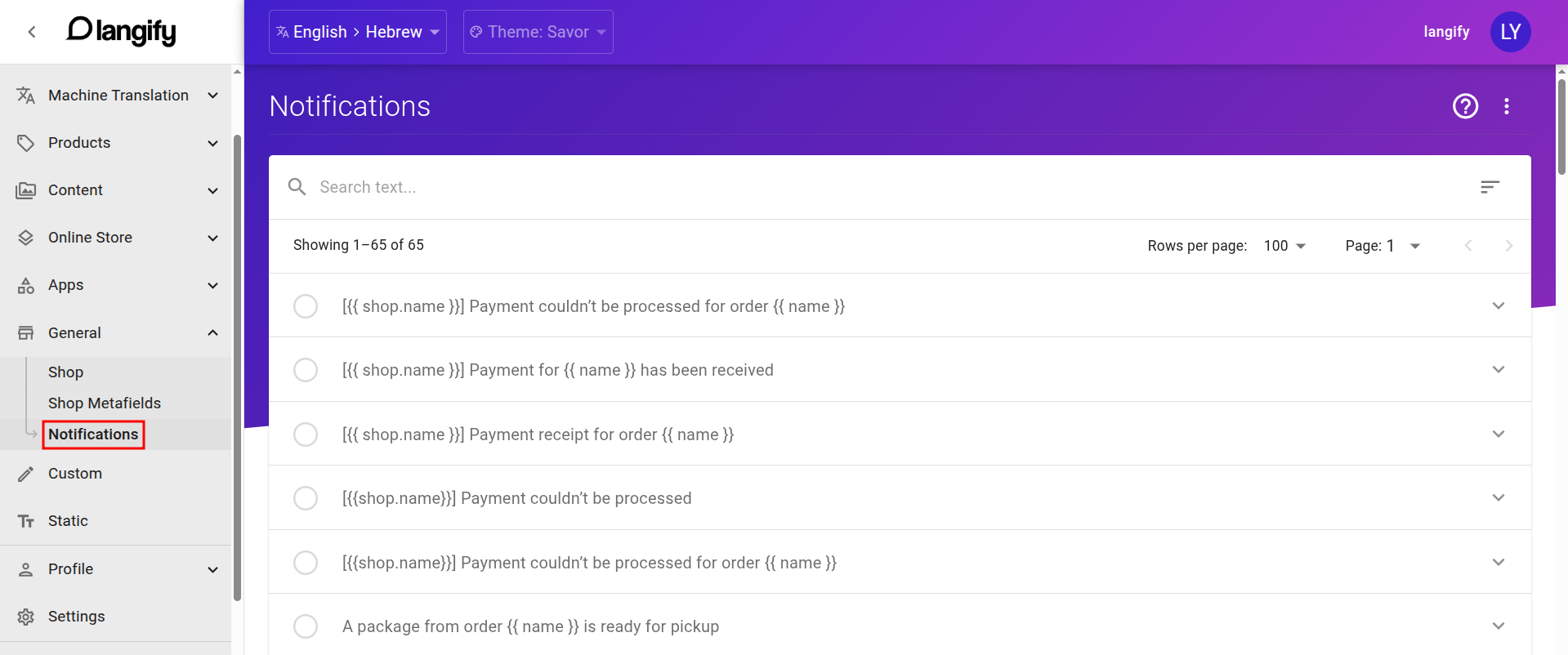
Shopify email notifications can be translated in langify under General > Notifications.
- For the most common languages, Shopify provides translations out of the box and you don’t need to add translations yourself.
- Shopify only supports translating the notifications set up at Shopify -> Settings -> Notifications. This unfortunately means that emails from other apps - even Shopify's own Messaging app for email automations - currently cannot be translated.
- Customers automatically receive translated emails based on the language selected at checkout or when signing in to their account.
- Custom Content translations cannot be applied to notifications.
- Product titles and variants in notifications are translated if you’ve translated them in the langify Products section.
- Because machine translations can cause issues with notifications, they are excluded from langify's Bulk Translation tool.
Machine translations may encounter issues due to the combination of HTML, CSS, and Liquid code in the notifications. If using machine translations, please review the text and layout carefully.
Manual Translations
Because machine translations can cause issues with the code and layout of the notification, we generally recommend translating them manually.
- Open the notification you want to translate in langify.
- Open the three-dot menu on the rght and then select Import content from original. This step ensures, that the translated notification contains the exact same HTML, CSS and Liquid code.

- Open the same notification in Shopify and preview it, so you can see which text is actually relevant for translation.
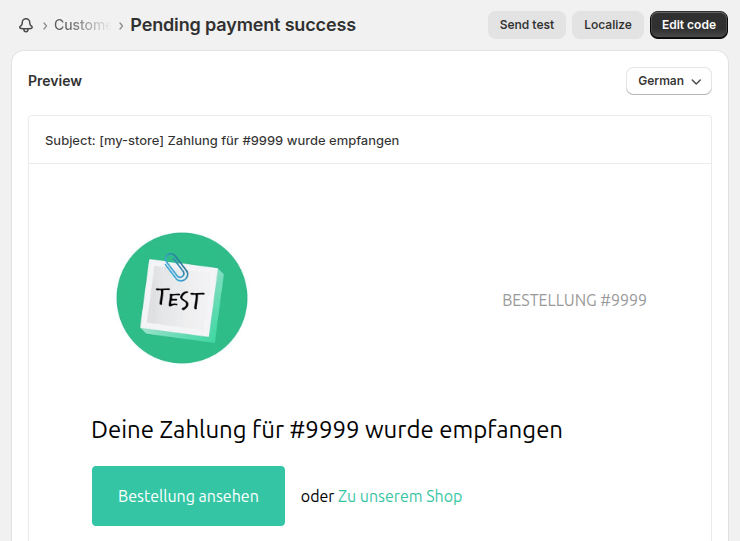
- Find these texts inside the notification in langify and replace them with your translations.
- When you are finished translating, do not forget to hit the blue Save button at the top.
Machine Translations
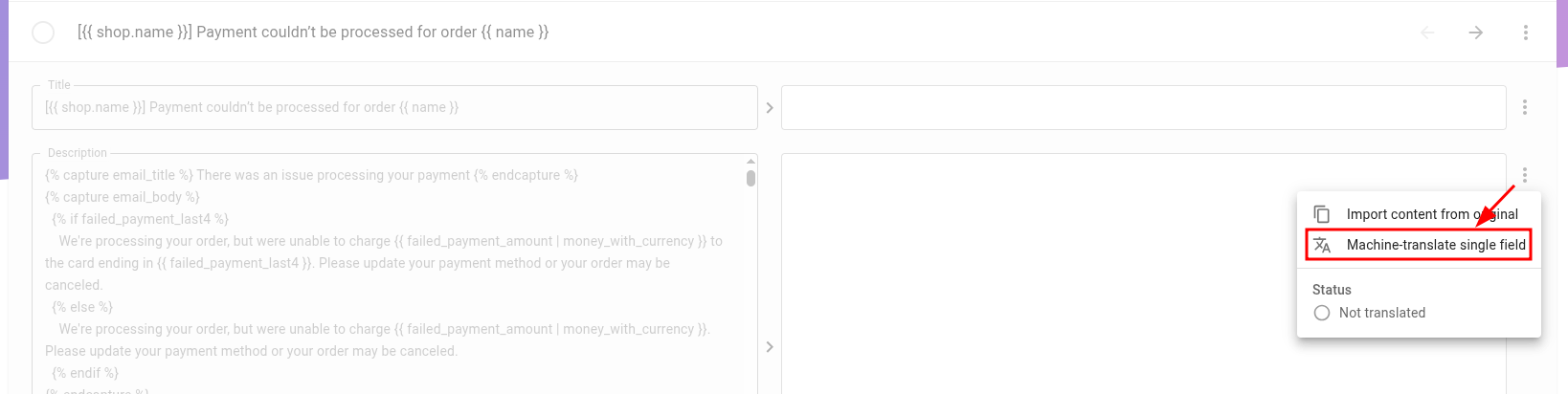
By default, the machine-translate button is hidden in the Notifications section. However, you can still machine‑translate a notification. To do so, open it in langify, click the three-dot icon to the right, and then choose the option Machine‑translate single field.