
Here is how to prepare your theme for translations manually. Unfortunately, Shopify's new regulations do not allow apps to implement the necessary code in your theme automatically anymore.
You can still use langify V1 with all translations and manage it. Please be aware however that this version is deprecated and is not being further developed outside of basic maintenance.
Contact us directly for any question via support@langify-app.com
Please follow the steps below to publish your translations to the desired theme:
1. Navigate to "Theme Settings"

2. Click "create a new theme with langify code" next to the theme you would like to prepare
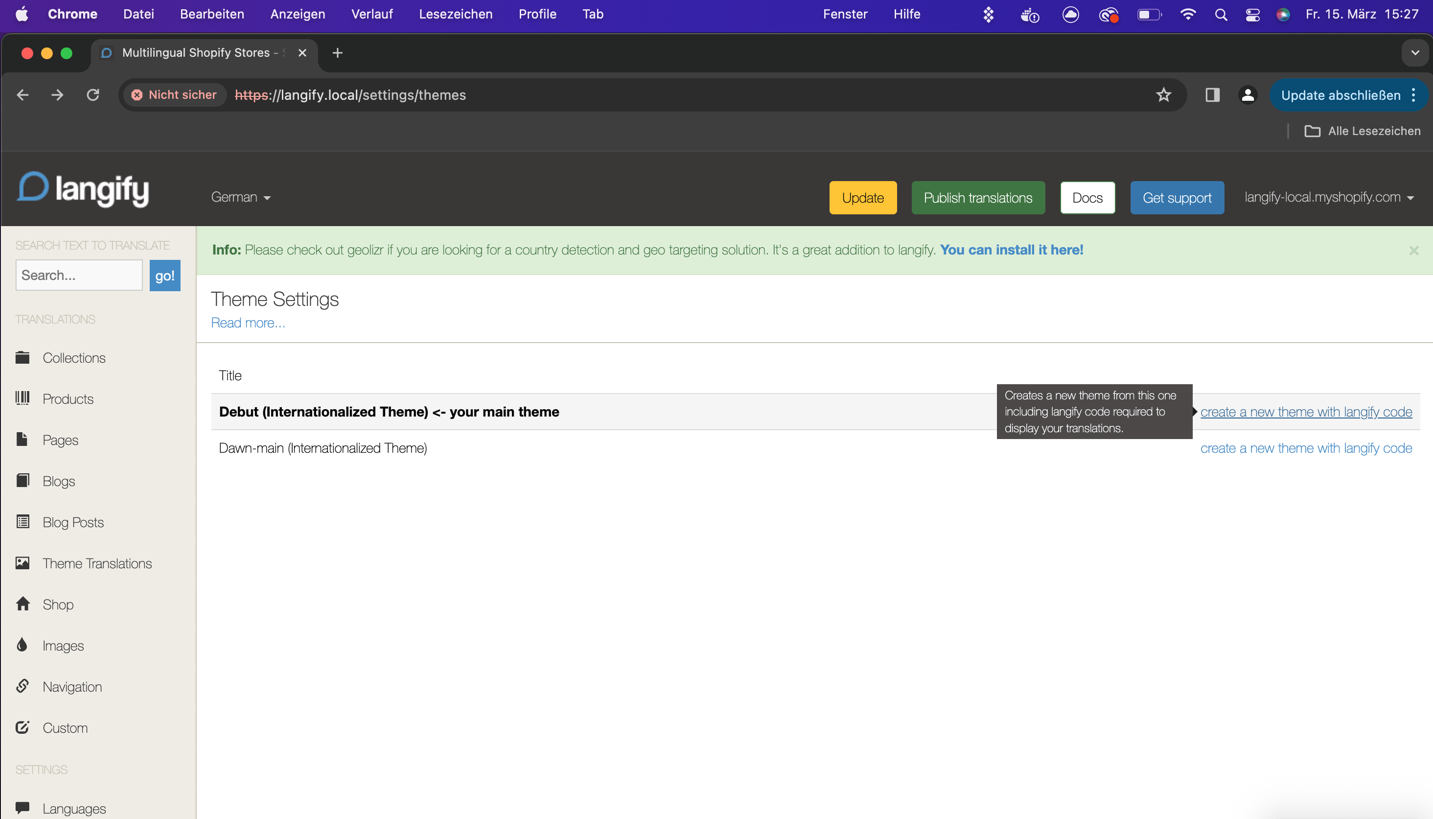
3. Select the langify features you would like to enable for that theme
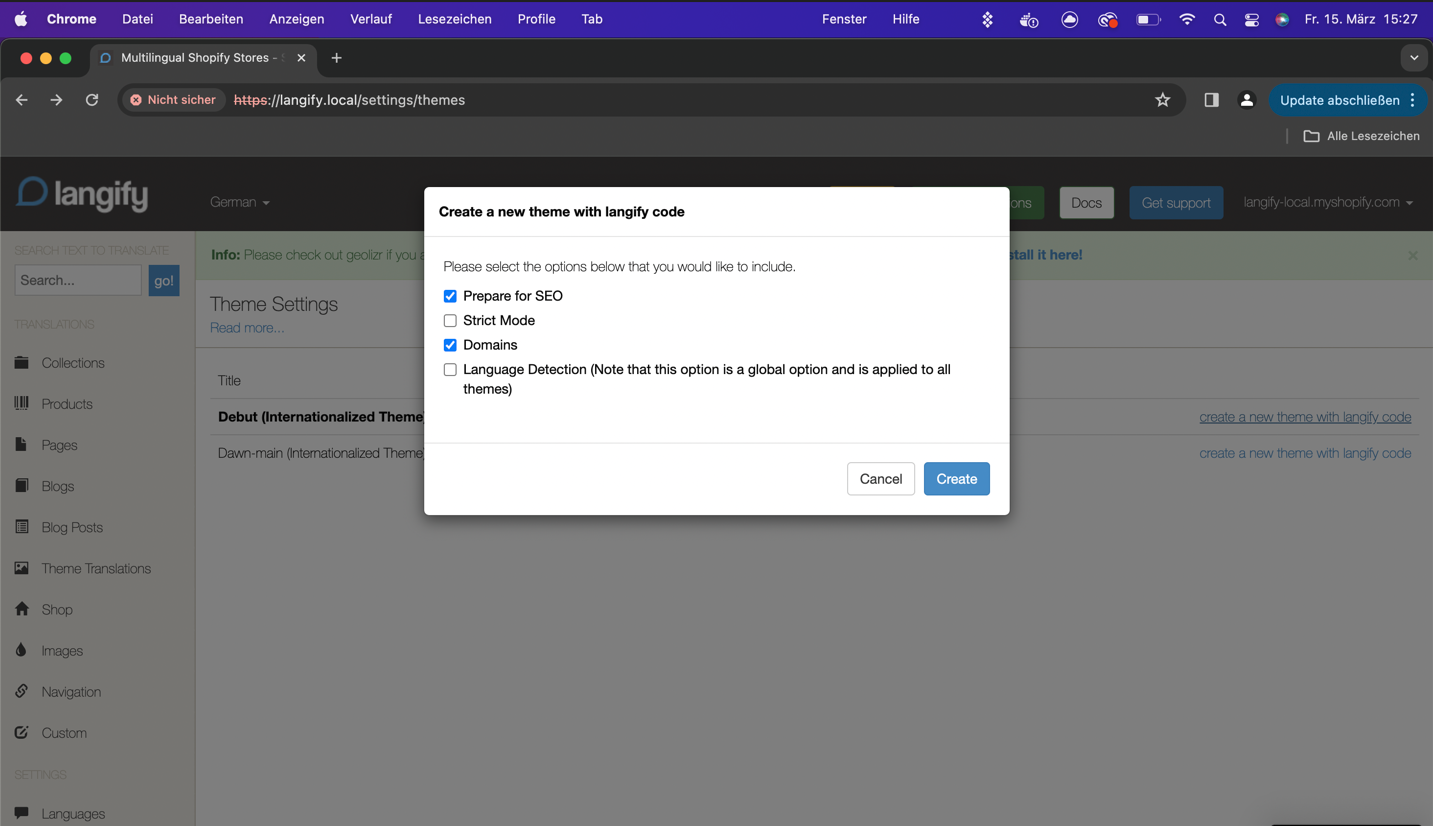
4. Langify will now create a copy of that theme, and add all required langify code to it.
(This might take some time...)

5. Once langify has created the theme, the theme is uploaded to your Shopify Online Store

6. After the theme has been uploaded, you should preview it to check if everything is behaving as expected.
If everything looks good, you can publish it, which will make it your new active main theme.
(You can also preview and publish the theme from within the Online Store -> Themes section of your Shopify Admin Panel)

7. The newly created theme will show up as "[theme_name] (with langify)"

We are aware of the unconformability of that process for you and are doing our best to make it as user-friendly as possible.
For any questions, please reach out to us directly and we support you all the way: support@langify-app.com