To further adjust the switcher’s appearance, open the Switcher Configurator in the langify dashboard and go to Appearance.
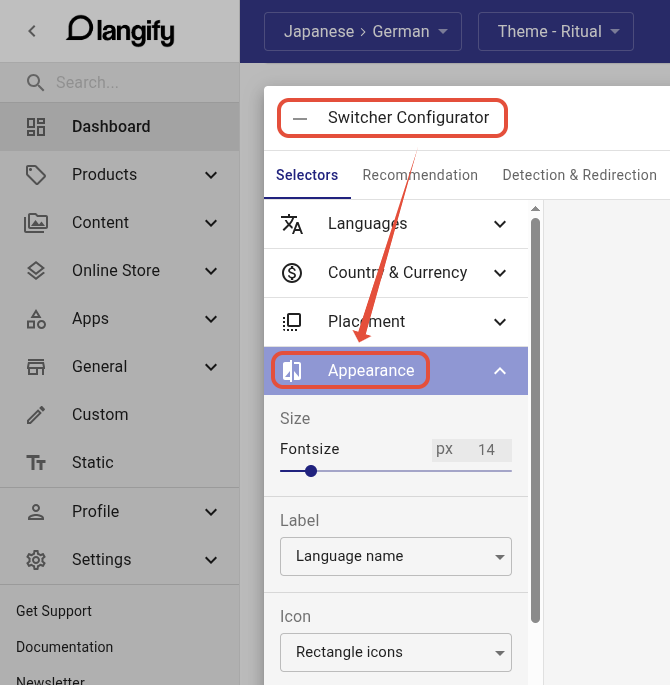
You will find a variety of options here that allow you to manage the switcher design in more detail.
Size
Here you can set the font size of the switcher. This also affects the size of the dropdown arrow if the switcher type features one.
Label
There are 4 options for the label:
- No label — This hides the name of the language. You can use this if you want to display the flag icon only.
- Language name — Displays the language name as you entered it when you created the language in langify.
- Shopify name — Displays the name of the language in the native tongue of that language. These are preset names by Shopify and cannot be further customized.
- ISO code - Displays the ISO code for the language, e.g. "EN" for English or "DE" for German.
Icon
You can choose between 4 options here. These include No icons, Rectangle icons, Square icons and Round icons for the flags.
If you would like to have different flags than the langify default flags, you can upload custom flag icons.
Transparency
Sets the background of the switcher to transparent.
Specific colors can be defined further down in the Colors tab. View our guide Colors for more details.
Border
If you would like to have a border around your switcher, you can enable it and define its width and the radius of its corners.
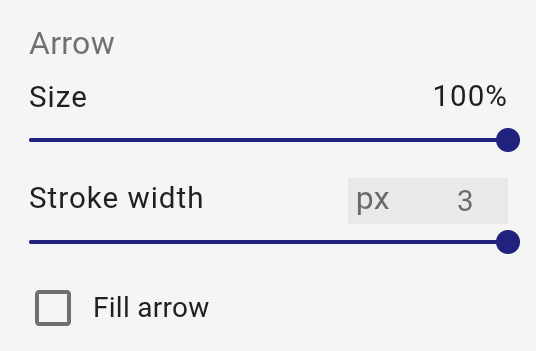
Arrow
Adjust the arrow size and stroke width, and choose between filled ("Fill arrow") or outline (default).